The project portfolio lives in an Excel spreadsheet, and GLPI is always a week behind. Project Import, a new NexTool module, brings projects and tasks from the spreadsheet into the GLPI 11 and 12 Projects module and, on every import after that, changes only what changed.
The problem
Many IT teams and PMOs track projects in a spreadsheet: one row per project, its stages right below, a manager, planned and actual dates and a status column, often calculated by a formula. That is where the weekly meeting happens. GLPI has built-in project management, with tasks, team, dates and Kanban, but to use it someone has to retype everything that is in the spreadsheet.
The first load is already work. The bigger problem comes later: the spreadsheet keeps being updated, and every change of date, status or manager has to be repeated by hand in GLPI. Within a few weeks the two drift apart, nobody knows which one is right and GLPI becomes an old copy. A scripted load solves the typing but creates another risk: the script does not show what it will change, does not know someone adjusted a date directly in GLPI and, if it runs in the wrong entity, duplicates the whole portfolio.
How Project Import works
The module adds a four-step wizard to GLPI. Nothing is written to GLPI before the last step.
- Upload the spreadsheet: send the .xlsx file (.csv is also accepted). The module reads and analyzes everything without touching GLPI projects.
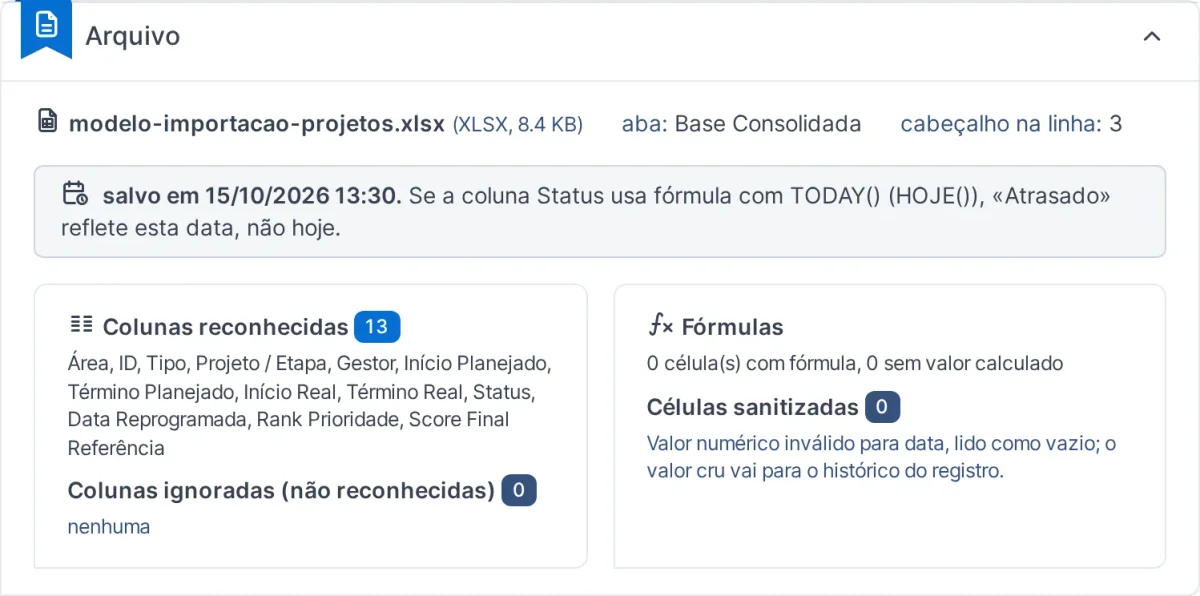
- Validation and parameters: spreadsheet statistics, recognized columns, discarded rows, a comparison with the last import and the choice of the target entity.
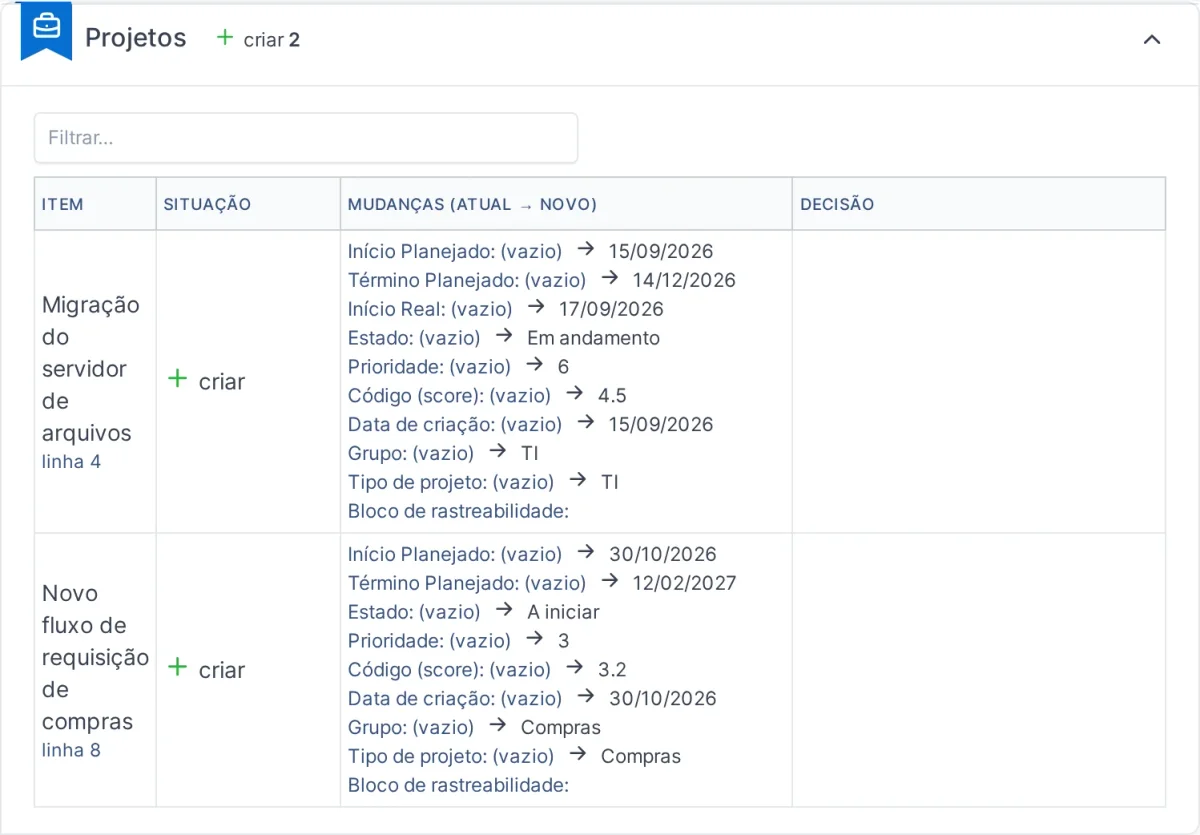
- Preview: every project and task shows up as create, update or no change, with the field-by-field difference. Filters by status help you focus on what needs attention, and the decision is item by item: update from the spreadsheet or keep it as it is in GLPI.
- Report and backup: what was created and updated, the adjustments GLPI itself made to the dates and the backup file of the import.
Day-to-day re-imports
The first load is only the beginning. The real use comes the following week, when the same spreadsheet comes back updated. The module recognizes the projects and tasks that already exist in GLPI and changes only what changed: a new date, a different status, a new manager. What is the same stays as it is.
- Manual changes in GLPI are highlighted. If someone changed a field directly in GLPI after the last import, the preview shows it, and you decide whether the spreadsheet or the adjustment wins.
- Nothing is deleted. A project or task that disappeared from the spreadsheet is only reported. The module never deletes items from GLPI.
- Saved mappings. The mapping is done once and applies to the next imports: the manager's name becomes a GLPI user (with suggestions and a warning for ambiguous names), the status becomes the project state and the task percentage, and the area becomes a group and a project type. If the option is enabled, the module creates the missing groups and types.
Safeguards before writing
Bringing hundreds of rows into GLPI at once calls for care. That is why the module checks before writing and warns about the most common spreadsheet mistakes:
- All or nothing. The import is applied in a single transaction, with a new check right before writing. If anything fails, nothing is written.
- Formulas not recalculated. A Status calculated with TODAY(), for example, keeps its old value when the spreadsheet is saved without recalculating formulas. The module warns you when that happens.
- Wrong target entity. If the spreadsheet seems to belong to another entity, the module warns you before importing, because the wrong entity would duplicate the whole load.
- Tasks with the same name. Two stages with the same name in the same project require you to confirm their order before moving on.
- Dates adjusted by GLPI. When GLPI itself changes a date on save, the adjustment shows up in the preview and in the report, so it is not a surprise later.
Every import creates a JSON backup with what was created and the previous values of what was changed. To be clear: the backup is not an undo button. It is the basis for a manual rollback, done by support, if one is needed. The safety lies in the previous steps, which show everything before writing.
Everything is recorded. The run history keeps the spreadsheet used in each import, the logs record the module's operations and permissions are set per screen: who imports, who only views the runs, who maintains the mappings.
The template spreadsheet
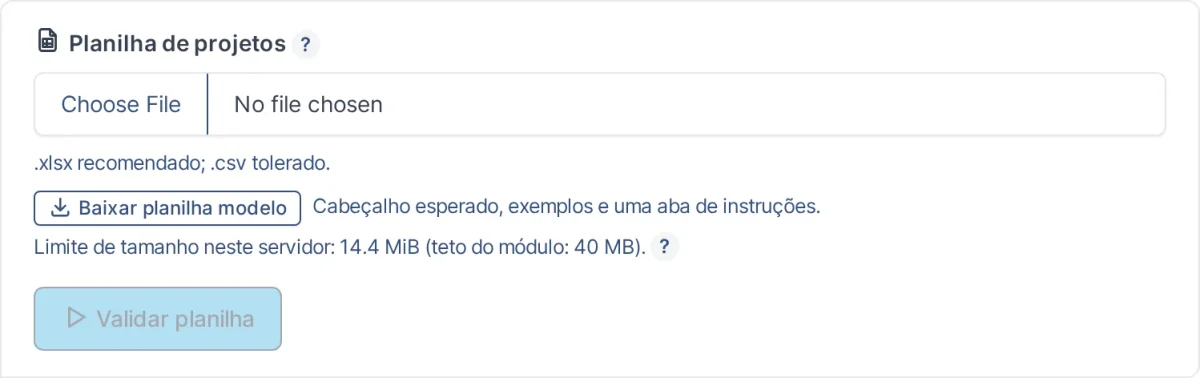
If you do not have the spreadsheet in this format yet, or want to check yours, the Download template spreadsheet button gives you an .xlsx file with the header, sample rows and an instructions sheet. The column headers are in Portuguese and should be kept as they are, since the module recognizes the columns by these names. The main columns are:
- Área (area), ID, Tipo (type: Projeto or Etapa, that is, project or stage) and Projeto / Etapa (project or stage name)
- Gestor (manager)
- Início Planejado, Término Planejado, Início Real and Término Real (planned and actual start and end)
- Status
The hierarchy comes from the order of the rows: the project row comes first and its stages right below, until the next project. No parent project column is needed.
How to enable it
- Have the NexTool plugin 6.35.0 or later installed on your GLPI 11 or 12
- Open NexTool and, in the module list, install and enable Project Import
- In Administration > Profiles, give the profiles that will use the module the permissions for each screen
- In the Import tab, download the template spreadsheet or upload your own
Who it is for
PMOs and IT teams that plan and track projects in an Excel spreadsheet and want those projects in GLPI, close to tickets, the team and the Kanban, without giving up the spreadsheet management already uses. It also covers the initial load for teams starting to use projects in GLPI with all their history in Excel.
When not to use it: if projects are already created and updated in GLPI itself, there is nothing to import. And if the portfolio is small and changes little, entering it directly in GLPI may be simpler than keeping the spreadsheet in the expected format.
Compatibility and license
- GLPI: 11 and 12
- Plugin: NexTool 6.35.0+
- File: .xlsx (.csv is also accepted)
- License: R$ 1,800 per year
The license is valid for 12 months and is renewed each period. From the 2nd year on, the renewal costs 50% of the original price. While the license is active, you get support, updates and follow-up.
Next step
See the details on the Project Import page. The module is part of NexTool, an ecosystem of modules that extends GLPI without code customization. Talk to the team for a demo.
Reviewed by the NexTool Solutions team. The screenshots are from a real GLPI environment with the NexTool plugin.