The screen technicians look at most during the day is the GLPI home page. And hardly anyone knows that, without any plugin, you can put the notices that matter right there: the new GLPI release, this week's security alert, the Microsoft 365 outage, the IT team's internal announcement. The feature has been around for years, is called RSS feeds and lives under Tools. This guide shows how it works, the permissions and the sharing step that make the feed appear for the whole team (the step almost everyone forgets), which feeds are worth adding and what to do when it does not show up. Along the way, it shows how to subscribe to the NexTool feed, which publishes GLPI guides and alerts in six languages.
What an RSS feed is, in 30 seconds
An RSS feed is an address a website publishes with the list of its latest updates: title, summary, date and link. Anyone who "subscribes" to the feed gets each update without having to visit the site. GLPI can read these addresses (in RSS and Atom formats) and shows the updates inside its own interface.
What changes in practice: instead of relying on someone remembering to check the GLPI website, the Microsoft status page or the vendor's blog, the information appears where the team is already working.
The feed only appears if three things are right
The number one cause of "I added the feed and nobody can see it" is skipping one of these steps:
| # | What to enable | Where | Without it |
|---|---|---|---|
| 1 | Profile permission for whoever will add feeds and whoever will read them | Administration > Profiles, Tools tab, Public RSS feeds row | The menu does not appear, or the feeds tab does not appear on the home page |
| 2 | Feed target (who sees it), set after saving | The feed's Targets tab | The feed stays personal: only the person who added it can see it |
| 3 | Internet access from the GLPI server (or access to the feed address) | Server network / proxy | "Error retrieving RSS feed" and no news items |
All three are covered below, in the order you will need them.
Step 1: profile permissions
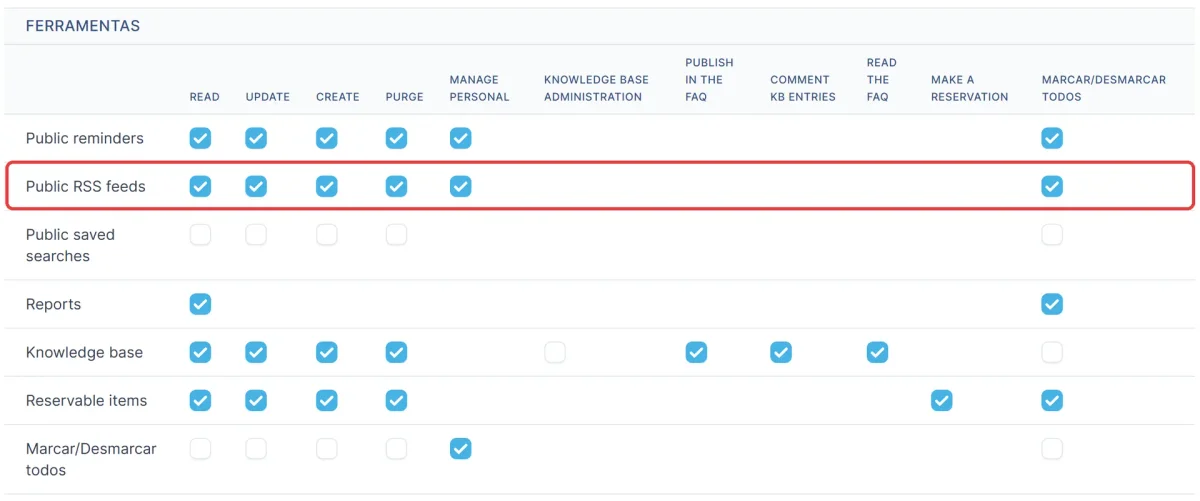
In Administration > Profiles, open the profile, go to the Tools tab and look for the Public RSS feeds row:
| Who | Rights on the "Public RSS feeds" row | What for |
|---|---|---|
| Whoever manages the feeds (GLPI admin, team lead) | Read, Create, Update, Delete permanently and Manage personal | Add feeds and share them with others |
| Technicians who only read | Read (and, if you want each of them to have their own, Manage personal) | See the RSS feeds tab on the home page |
| Self-service users (Self-Service) | Read (the only right available on this type of profile) | See the RSS feed tab on the self-service home page |
These are the labels you will see in the GLPI 11 rights table: the row is Public RSS feeds and the columns are Read, Update, Create, Purge and Manage personal. Purge is the same right as Delete permanently.
Remember that a user can have different profiles in different entities: the right has to be on the profile they use in the entity where the feed was shared.
Step 2: add the feed
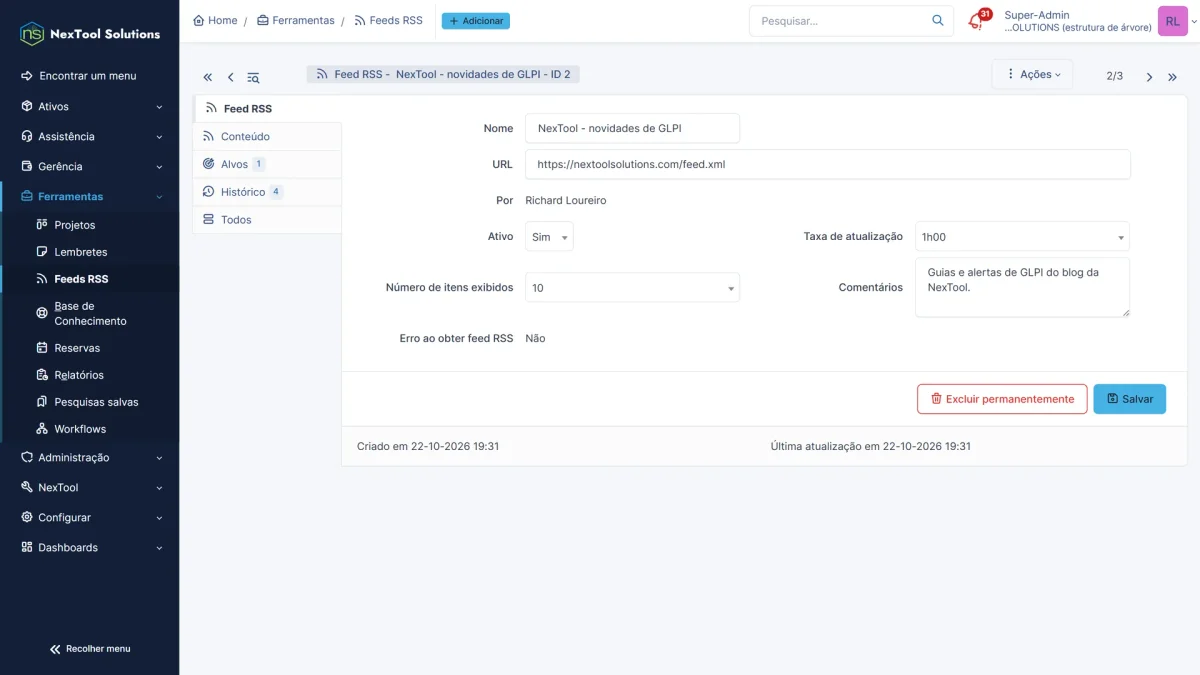
- Go to Tools > RSS feeds and click Add.
- Fill in the fields:
| Field | What to enter | GLPI default |
|---|---|---|
| Name | How the feed will appear in the list (see the catch just below) | the feed's title |
| URL | The feed address (starts with http://, https:// or feed://) |
- |
| Active | Yes, so that the feed is read | Yes |
| Refresh rate | How often GLPI checks for new items | 1 day |
| Number of items displayed | How many news items from this feed are shown | 20 |
| Comments | Internal note, optional | - |
3. Save.
4. Check the Content tab: it shows the news items GLPI managed to read. If it is empty or shows "Error retrieving RSS feed", see the section "When the feed does not appear".
Warning: on creation, GLPI replaces the name you typed with the title the feed itself provides. If you want a name of your own (for example "Google Workspace status" instead of "Google Workspace Status Dashboard"), edit the feed after saving and change the name: when editing, GLPI keeps what you wrote.
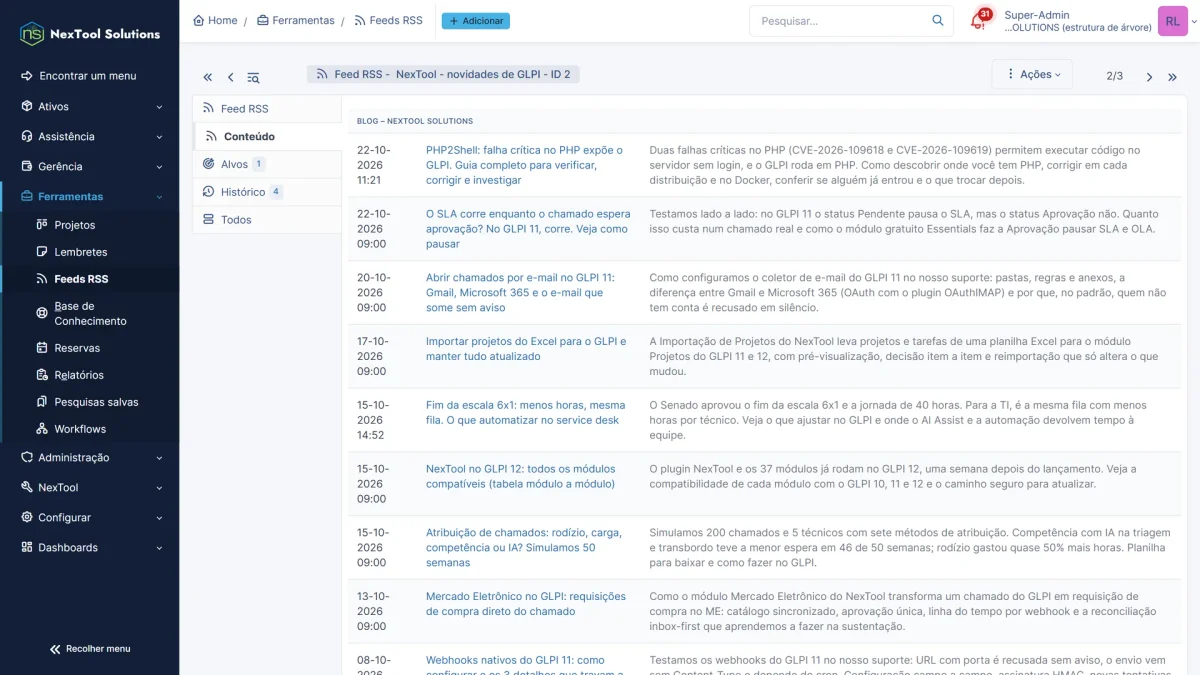
Tip: the 1 day default is fine for blogs and news. For security alerts and status pages, use 1 hour: GLPI caches the feed for the period you choose, and with 1 day an urgent notice may only arrive the next day.
Step 3: share the feed (otherwise only you see it)
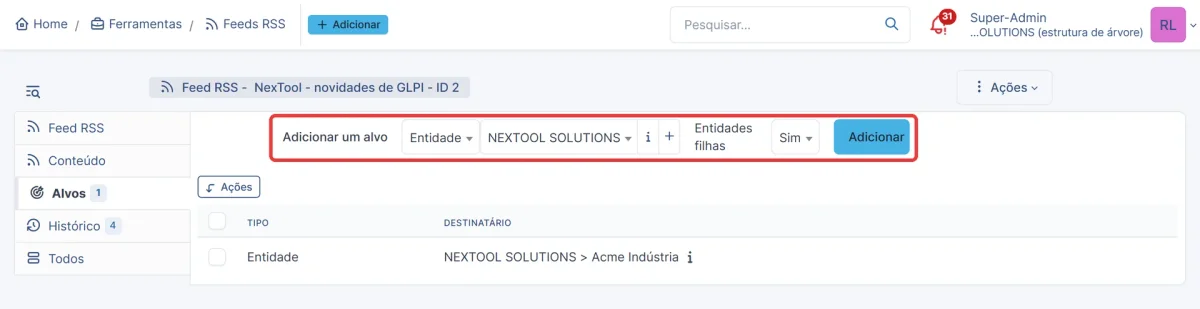
Every feed starts out personal: after saving, only the person who added it can see it. For others to see it, open the feed, go to the Targets tab, click Add a target and choose who to share it with:
| Who for | How to share it on the Targets tab |
|---|---|
| Everyone in GLPI | Entity target = the root entity, with Child entities = Yes (recursive) |
| A specific company or customer | Entity target = its entity, with Child entities = Yes if it has sub-entities |
| Technicians only | Profile target = the technicians' profile (e.g. Technician), on the root entity with Child entities = Yes |
| Self-service users only | Profile target = Self-Service, on the root entity (recursive) or only on the entities that should see it |
| A team | Group target = the group (e.g. Infrastructure, Tier 1 Support) |
| Specific people | User target |
You can combine several targets on the same feed. One word of caution in multi-company environments (MSPs): sharing on the root with Child entities = Yes shows the feed to all customers. If the feed is internal to your team, use the Profile or Group target instead.
Step 4: where to see the news
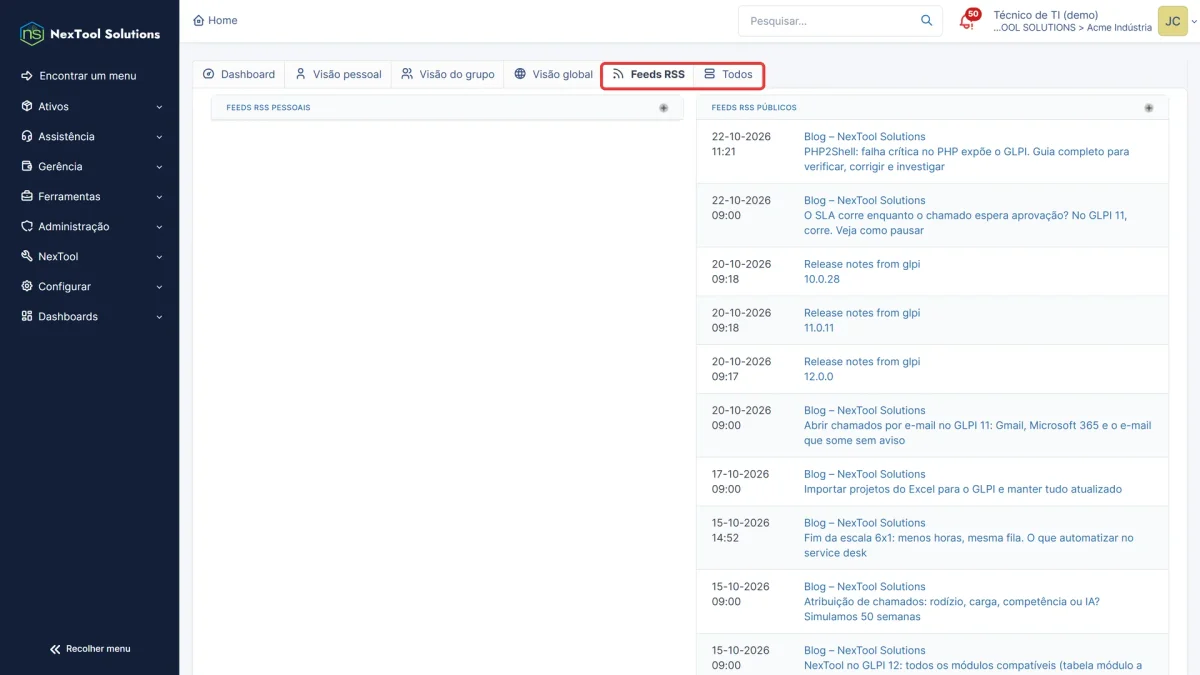
- Technicians (standard interface): home page, RSS feeds tab, next to Personal View, Group View and Global View. The tab combines your personal feeds and the public feeds shared with you, with the most recent news at the top.
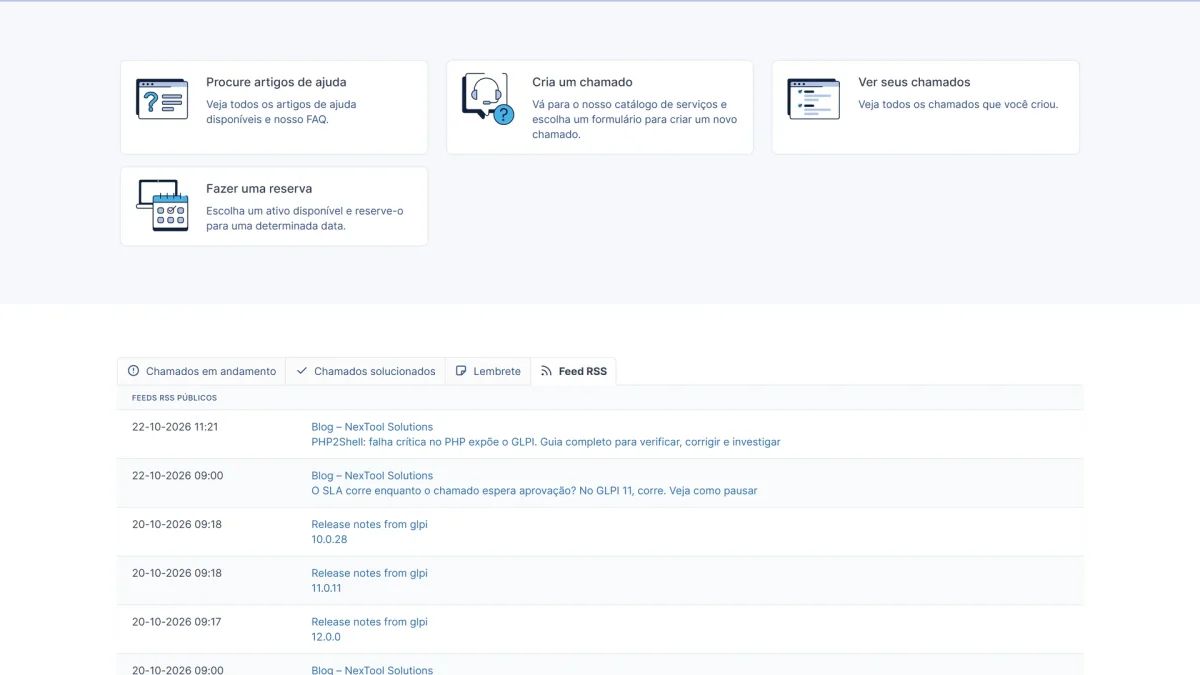
- Self-service users: in GLPI 11, the home page gets an RSS feed tab when at least one public feed is shared with the user's profile. It is a great place for downtime notices and IT announcements.
- Administrators: in Tools > RSS feeds, each feed's Content tab shows what GLPI is reading, which is useful for checking before you share it.
Subscribe to the NexTool feed
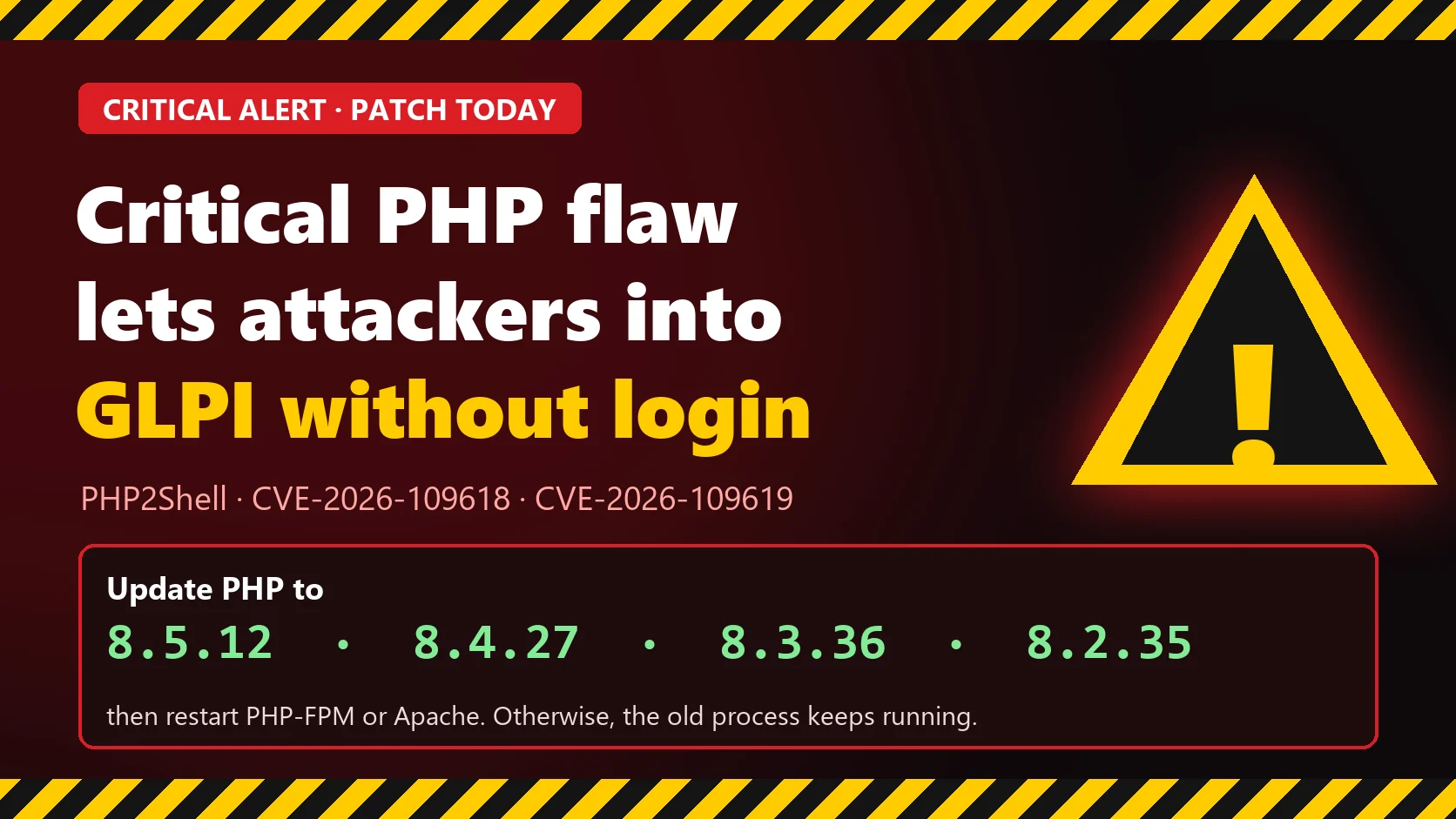
NexTool publishes on its blog twice a week: practical GLPI guides (configuration, SLA, mail collector, forms, upgrades), comparisons and security alerts when something affects anyone running GLPI, such as the PHP2Shell flaw in PHP in October 2026. Every post comes out in six languages, and each language has its own feed:
| Language | Feed URL |
|---|---|
| Portuguese (Brazil) | https://nextoolsolutions.com/feed.xml |
| Portuguese (Portugal) | https://nextoolsolutions.com/pt-pt/feed.xml |
| English | https://nextoolsolutions.com/en/feed.xml |
| Spanish | https://nextoolsolutions.com/es/feed.xml |
| French | https://nextoolsolutions.com/fr/feed.xml |
| Italian | https://nextoolsolutions.com/it/feed.xml |
Suggested setup: the English feed (https://nextoolsolutions.com/en/feed.xml), Name "NexTool - GLPI news" (GLPI fills it in automatically with the blog's title; change it after saving), a refresh rate of 1 hour, 10 items, and the root entity with sub-entities as the target, for the whole technical team.
Other feeds worth having on the home page
| Feed | Who for | URL |
|---|---|---|
| GLPI releases | GLPI administrators | https://github.com/glpi-project/glpi/releases.atom |
| GLPI Agent releases | Whoever looks after inventory | https://github.com/glpi-project/glpi-agent/releases.atom |
| PHP news (includes security notices) | Whoever looks after the server | https://www.php.net/feed.atom |
| CERT.br alerts | Security and infrastructure team | https://www.cert.br/rss/certbr-rss.xml |
| Google Workspace status | Service desks at companies that use Google | https://www.google.com/appsstatus/dashboard/en/feed.atom |
| Azure status | Anyone running services on Microsoft | https://azure.status.microsoft/en-us/status/feed/ |
| Zoom, GitHub and Cloudflare status | Anyone who depends on these services | https://status.zoom.us/history.rss, https://www.githubstatus.com/history.rss, https://www.cloudflarestatus.com/history.rss |
An idea few people use: if your company has its own status page (Statuspage, Uptime Kuma, Cachet and similar tools publish RSS), add its feed as public for the Self-Service profile. When a system goes down, users see the notice on the GLPI home page before opening a ticket, and the service desk gets fewer duplicate tickets.
When the feed does not appear
| Symptom | Likely cause | What to do |
|---|---|---|
| "Error retrieving RSS feed" on the Content tab | The GLPI server cannot reach the internet (the server fetches the feed, not the browser) | Test on the server with curl -I <feed url>. If the company uses a proxy, set it up in Setup > General, System tab, Proxy configuration section |
| "URL ... is not allowed by your administrator" | GLPI has a list of allowed addresses for server-side requests, and someone has restricted that list | Ask the server administrator to add the feed's domain to the GLPI_SERVERSIDE_URL_ALLOWLIST constant (file config/local_define.php) |
| New items take a while to appear | Cache: GLPI only fetches the feed again after the refresh rate | Lower the rate to 1 hour |
| The user cannot see the feeds tab | A right is missing from the profile, or the public feed does not target that user | Check the Public RSS feeds row on the profile and the feed's Targets tab |
| The tab only appears in self-service some of the time | In GLPI 11 it only appears when there is at least one public feed for that profile | Add the Self-Service profile to the targets |
Checklist for your GLPI feed
- Give the Read right on the public RSS feeds line to every profile that should see the feed.
- Add the feed in Tools > RSS feeds and check the Content tab.
- Rename the feed after saving if you want your own name.
- Set the refresh rate: 1 hour for alerts, 1 day for news.
- Share the feed in the Targets tab (root entity with Child entities = Yes, a profile, a group or a user).
- Open the home page as a regular user and check that the feeds tab shows up.