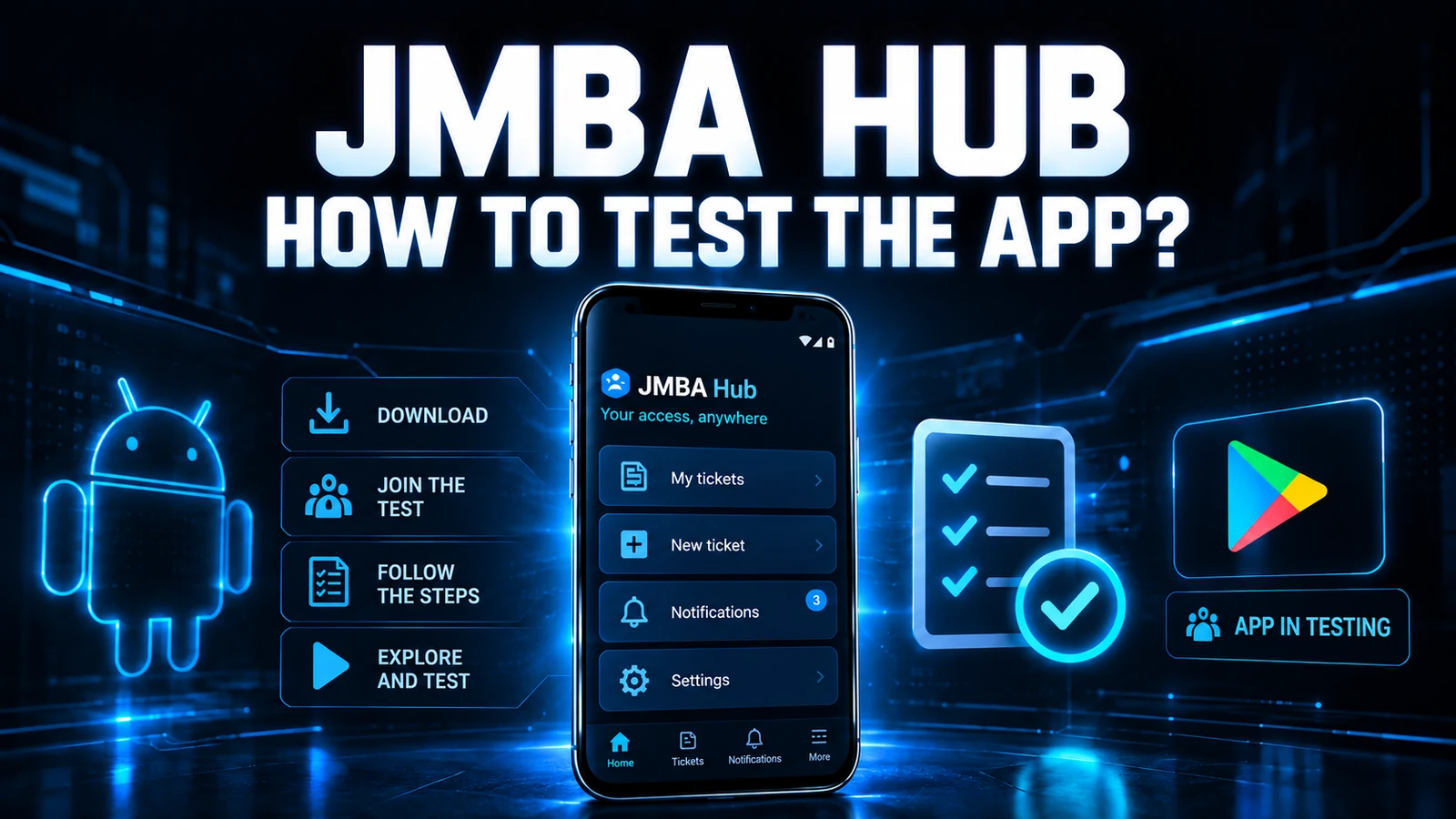
JMBA Hub brings GLPI to your phone: technicians follow their tickets and receive notifications in the Android app, without opening a browser. This guide shows how to install the app, prepare GLPI with the plugin and the API, and log in for the first time.
JMBA Hub is developed by JMBA Soluções. The screens in this tutorial come from a real install of GLPI 11.0.11 with the JMBA Hub 1.4.0 plugin.
What you need
- An Android phone with access to Google Play.
- Your organization's GLPI address and a valid user on it.
- For steps 2 to 4, a GLPI profile that can manage plugins and the general setup.
1. Install the app
JMBA Hub is published on Google Play. On your phone, open the JMBA Hub page on Google Play (or search for JMBA Hub in the store) and tap Install.
2. Install the JMBA Hub plugin on GLPI
The plugin connects GLPI to the app and holds the access and notification settings. The code is public, in the JMBA-Solucoes/jmbahub repository, and the package is in release 1.4.0: ZIP download or TAR.GZ download.
Warning: back up GLPI before installing a plugin on an instance in use.
- Extract the package into the GLPI
pluginsdirectory. - Check that the folder ended up at
plugins/jmbahub, with exactly that name and no hyphen. - Log in to GLPI with a profile that can manage plugins.
- Open Setup > Plugins, find JMBA Hub, click install and then enable.
If you have access to the server, steps 1 and 2 look like this (adjust the GLPI path and the web server user: www-data on Debian and Ubuntu, apache on Red Hat and derivatives):
# Download and extract the plugin into the GLPI plugins folder
cd /var/www/glpi/plugins
sudo wget https://github.com/JMBA-Solucoes/jmbahub/releases/download/v1.4.0/jmbahub-1.4.0.tar.gz
sudo tar -xzf jmbahub-1.4.0.tar.gz
sudo chown -R www-data:www-data jmbahub

# Check that the folder has the right name
ls -d jmbahub
Prefer the release packages: they already contain the folder with the right name. The plugin README covers installation from the console and compatibility details.

3. Enable the legacy REST API
The app uses the GLPI API to authenticate the user and query data according to each profile's permissions. In GLPI 11, the screen separates the new API from the legacy REST API. JMBA Hub's login currently uses the legacy API with username and password, so enabling only the new API is not enough.
- Open Setup > General > API.
- In the Legacy API section, turn on Enable legacy REST API and confirm if GLPI asks.
- Turn on Enable login with credentials.
- Click Save.
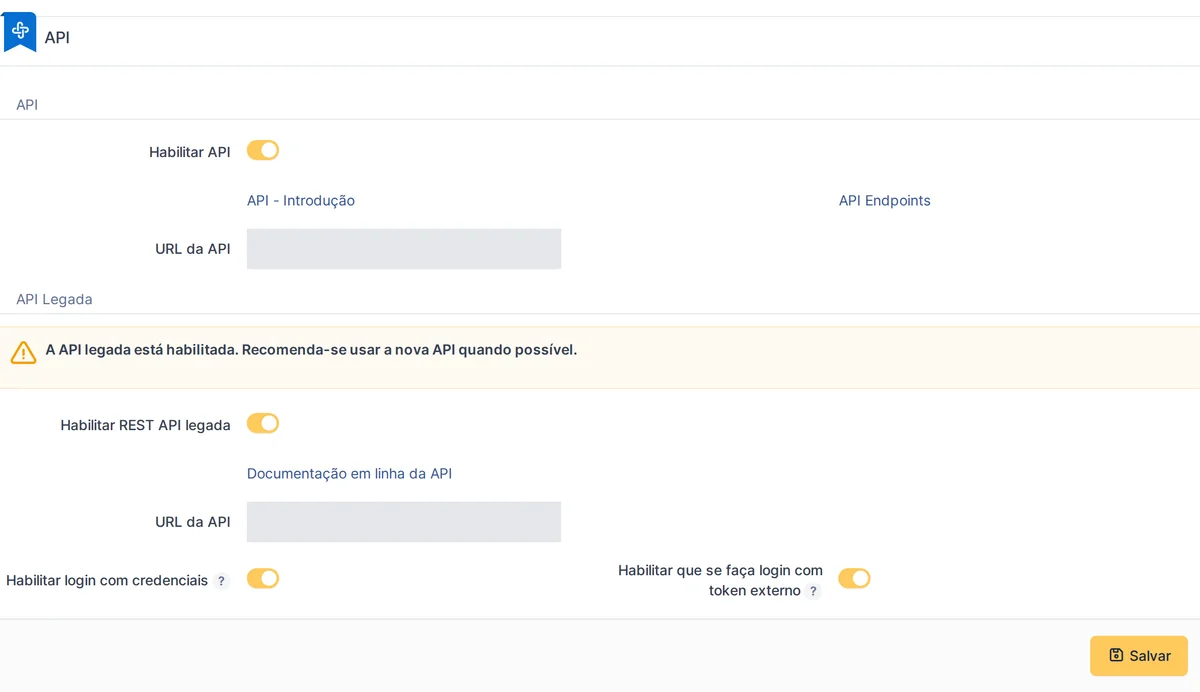
Tip: the Enable login with external token option is something else. It is on in the screenshot, but it is not needed for the app's username and password login.
Create an API client for JMBA Hub
On the same screen, under API clients (Legacy API), create a client named JMBA Hub and leave it Active. Without it, the app cannot reach the legacy API.
Leave the IPv4 and IPv6 address ranges and the App-Token field empty: that way access is not tied to an IP address, since the phone changes networks, and no App-Token is required. Save the client before moving on.
4. Configure the plugin and allow the users
Open the JMBA Hub settings from the plugin list. The panel has the app access control and the notification rules.
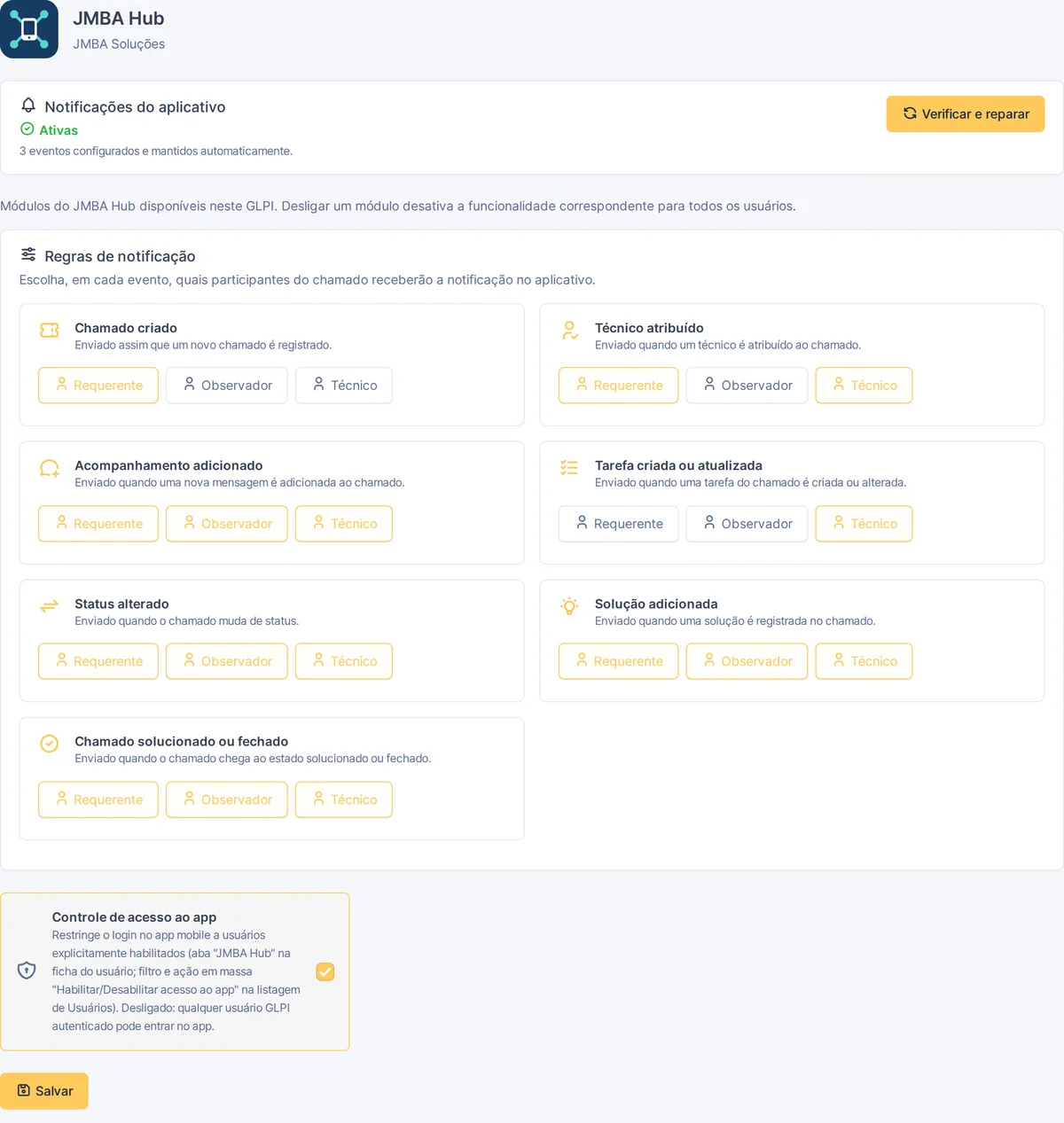
- App access control: when on, only enabled users can log in through the app. Enable each one in the JMBA Hub tab of the user form or with the bulk actions in Administration > Users.
- Notifications: use Enable notifications or Check and repair, depending on the status shown. Check the GLPI base URL and the connection to the JMBA Hub service.
- Recipients: choose which events go to requesters, observers and technicians.
The app screens and notification delivery depend on the JMBA Hub service. The plugin does not replace the profile permissions in GLPI: the app shows only what each user's profile can see.
5. Log in for the first time
Open JMBA Hub on Android, enter the GLPI address and log in with your GLPI username and password. Use the base address, including the subdirectory if there is one, for example https://glpi.yourcompany.com or https://yourcompany.com/glpi.
Check that you can log in, see the tickets your profile allows and open the details of one of them. Then allow the app's notifications on Android and test with a real event.
Installation checklist
- Install the JMBA Hub app from Google Play.
- Extract the plugin to
plugins/jmbahub, install and enable it. - Enable the legacy REST API and login with credentials.
- Create the JMBA Hub API client and leave it active.
- Allow the users in the plugin's access control.
- Log in to the app and open the details of a ticket.
- Allow notifications on Android and test with an event.
Common problems
- Login rejected: check the username and password, the legacy REST API, login with credentials, the active API client and the user's permission in the plugin.
- Connection failure: check the GLPI URL (with
httpsand the subdirectory, if any), whether the server answers from outside the internal network and the API client rules. - Notifications do not arrive: check that they are allowed for the app on Android and use Check and repair in the plugin panel.
- Plugin logo or changes do not show up: clear the GLPI cache. If PHP uses
opcache.validate_timestamps=0, reload PHP-FPM for file changes to take effect.
Links to get started
Found a problem? Contact JMBA Soluções and include the GLPI version, the phone model and the steps to reproduce it, without sending passwords, tokens or personal data from tickets.
The screenshots come from a real install of GLPI 11 with the JMBA Hub 1.4.0 plugin. GLPI is a registered trademark of Teclib'.