


Most knowledge bases die the same way: nobody writes down what they have already solved ten times, and nobody reads what was written. NexTool's AI Assist module uses artificial intelligence to close that loop inside GLPI itself: the right article shows up before the ticket is opened, the technician's reply cites the knowledge base, and the resolved ticket becomes a draft article ready for review.
The problem
A service desk's knowledge is scattered across ticket tasks and solutions. Writing an article takes time the technician doesn't have in the middle of the queue, so the solution is recorded only in that one ticket and gets lost. On the other side, users open tickets for things an article would solve in a minute, because they can't find the article when they need it.
Dropping a generic AI in the middle doesn't fix this on its own. An assistant that always returns something makes up steps when there is no material, suggests unrelated articles and turns a test ticket into a "procedure". In a knowledge base, that is worse than having nothing: it becomes wrong information that looks official.
How AI Assist works with the knowledge base
AI Assist is a free module of the NexTool plugin. It works with OpenAI, Google Gemini or Anthropic Claude, using your company's own API key, and it steps in at six points of the support process.
1. Before the ticket: suggested articles in the form
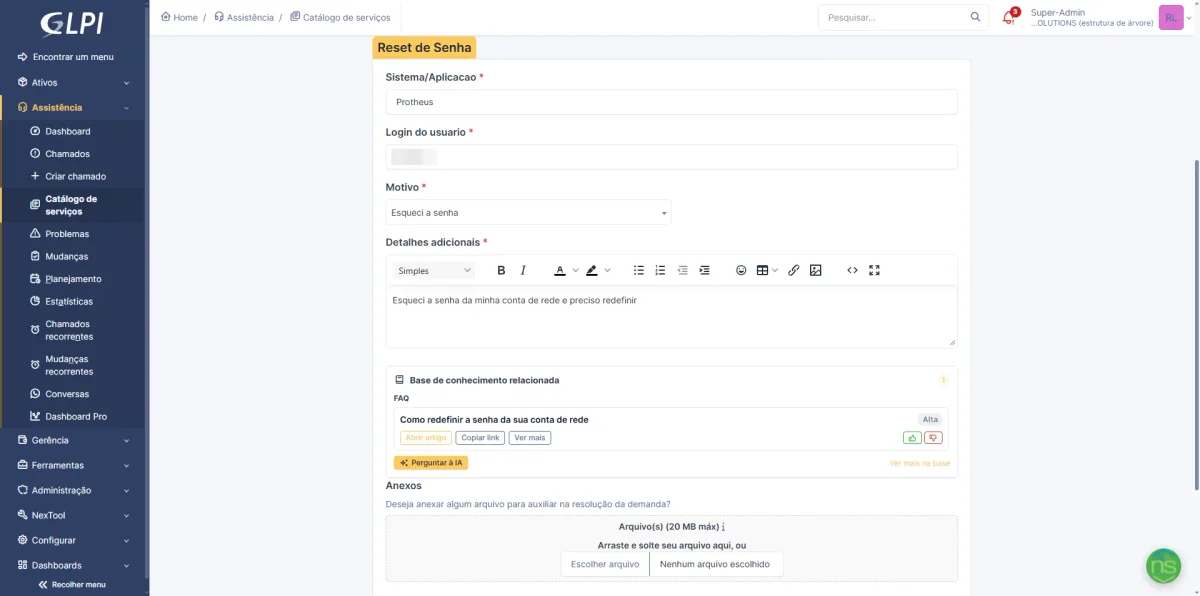
While the user describes the problem in a GLPI 11 form or in the ticket form, the module searches the knowledge base for related articles and shows a panel right below the question being filled in. The search combines the typed text, the ticket category linked to the knowledge base category and each article's keywords, while respecting the normal article visibility rules in GLPI.
With the Ask the AI button, the module drafts a short answer from the articles it found, citing the source. The user decides whether that solved the issue or whether to open the ticket anyway, and both choices are recorded: that is how you measure how many tickets the knowledge base prevented.
2. At creation: automatic triage with a source
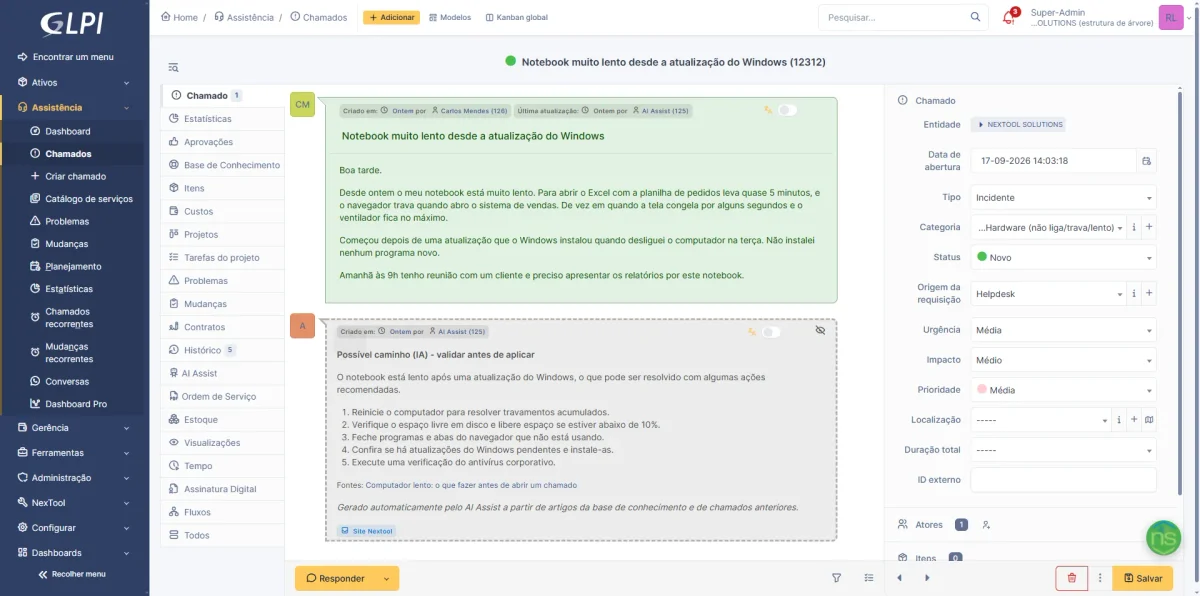
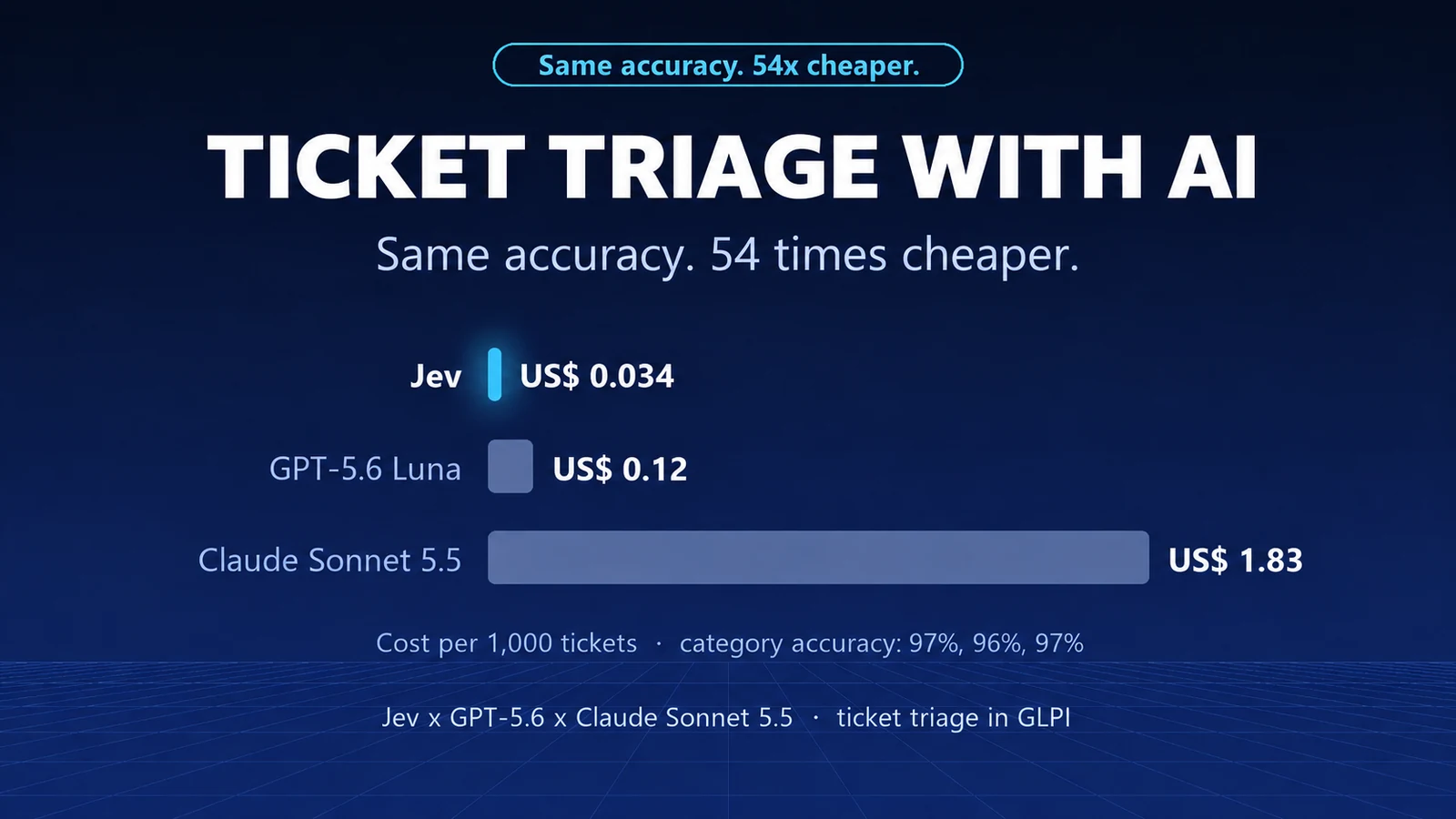
With automatic triage turned on, every new ticket is analyzed in the background. When there is an article or a previous ticket covering the same problem, the module saves a private follow-up with a possible path and states where it came from. The technician starts working with a lead, and the requester sees none of it.
3. While working the ticket: a reply that cites the article
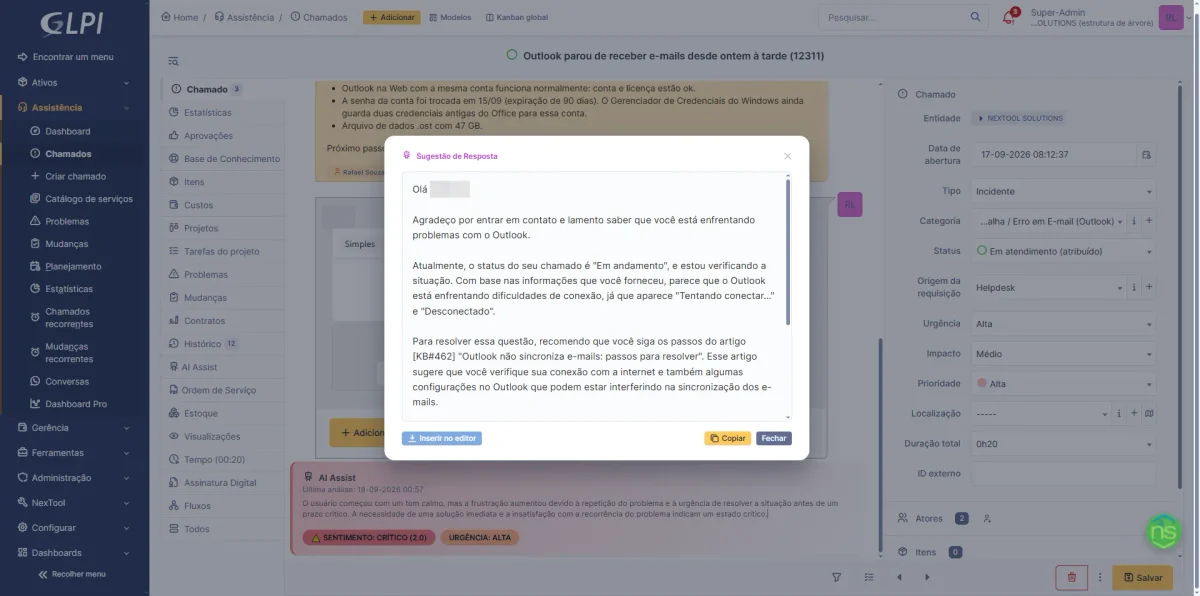
The reply suggestion checks the knowledge base before writing. When an article solves the case, the reply follows its procedure and cites it by title. When the suggestion is inserted into the editor, only the articles actually cited are linked to the ticket, which keeps the knowledge base usage statistics honest.
4. After resolution: the ticket becomes an article
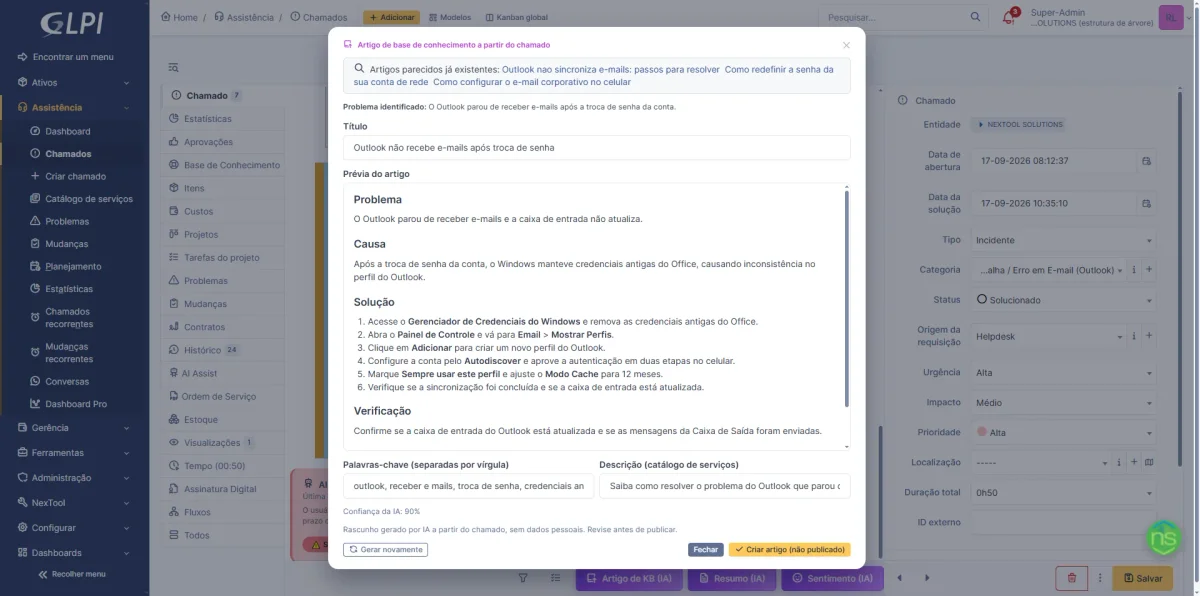
On a solved or closed ticket, the KB article (AI) button generates a draft from what was recorded. The AI identifies the problem from the category, title and description, checks whether the tasks and the solution actually address that problem, and only then writes, organizing the text into problem, cause, step-by-step solution and verification.
The draft is shown formatted, exactly as it will look once published, along with similar articles that already exist in the knowledge base, to avoid duplicates. On confirmation, the article is created as unpublished, linked to the source ticket and free of any personal data. Fine-tuning is done in GLPI's own editor.
5. In the article editor: a writing assistant
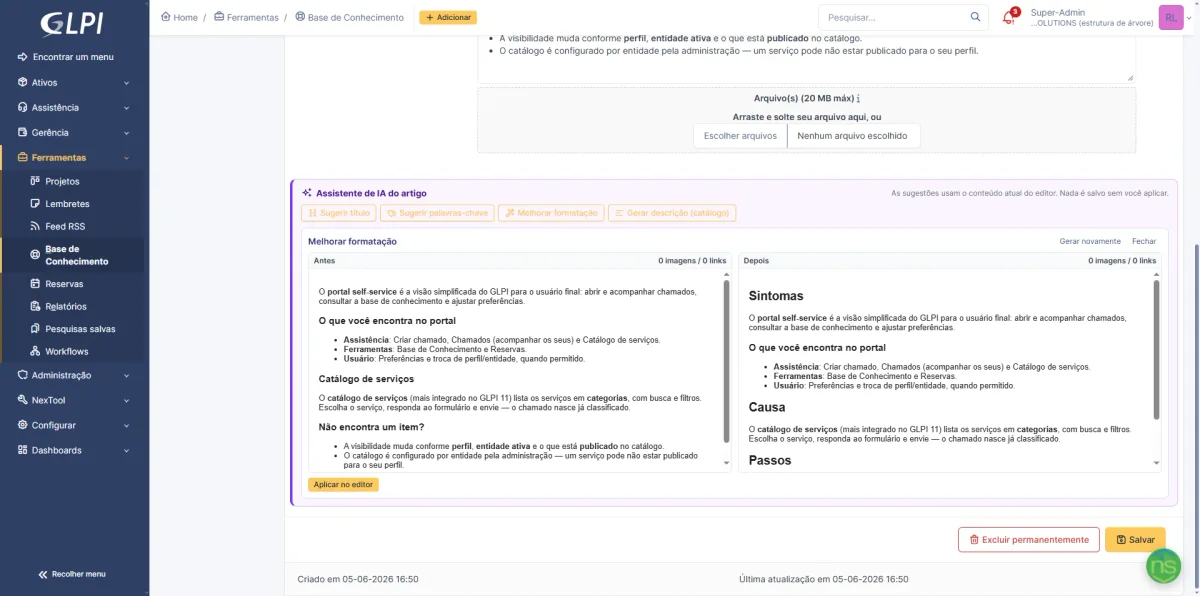
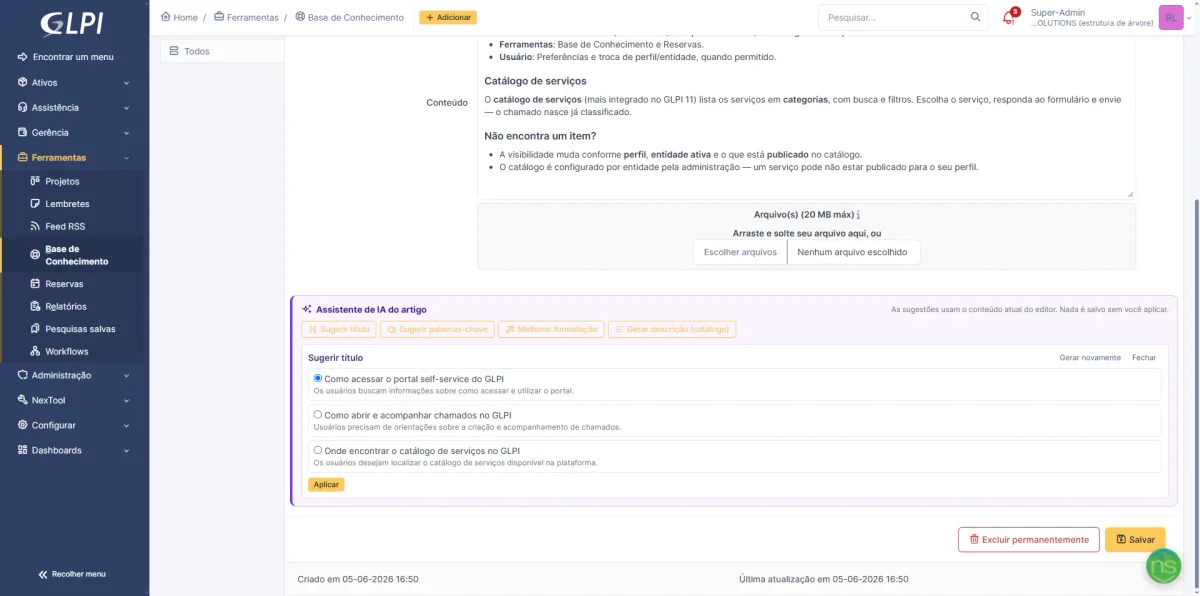
When editing any knowledge base article, an AI Assist toolbar suggests titles, keywords and a section-based layout, plus the short description used in the GLPI 11 catalog. Everything is shown side by side with the current text and only goes into the article when you click Apply: the assistant never saves on its own.
6. Knowledge base gaps: what still needs to be written
A daily routine cross-checks resolved tickets by category against existing articles. A category with many tickets and no article becomes a gap, with a notice to administrators and, for the largest ones, a draft prepared from the tickets that best documented the solution. The same routine flags articles that look outdated and articles that have never been used.
When the AI suggests nothing (and why that is a good thing)
In a knowledge base, trust is what matters most. That is why AI Assist was built to stay silent when it has no material:
- Article from a ticket: only on solved or closed tickets, and only when the tasks and the solution describe what was done. Unfilled solution template text and courtesy messages don't count. Without content, the answer is "No relevant content to create a knowledge base article", along with the reason, and no AI call is made.
- Triage: test tickets or tickets with no problem described are not triaged, an article with no real connection to the subject is not used as a source, and every suggested step must point to the article or ticket it came from, with enough confidence. If any of these is missing, no follow-up is saved.
- Gaps: tickets whose solution is only the template text are not used as material for the draft.
In practice, technicians come to trust what the AI saves, because it doesn't save what it doesn't know.
Privacy and cost
- Your own key: calls go from your GLPI straight to the provider you chose, with no middleman. The key is stored encrypted in GLPI.
- Personal data: by default, names, email addresses, phone numbers and Brazilian tax IDs (CPF/CNPJ) are replaced with placeholders before sending, and generated articles never carry personal data.
- Usage: every AI call is logged with its tokens, the feature and the user, and the automatic routines (triage and gaps) have a daily token cap.
- Language: the AI replies in the language of whoever is using GLPI.
How to enable
- Install the NexTool plugin on GLPI and enable the AI Assist module in Plugins > NexTool > Modules.
- In the Connectors tab, choose the provider, enter the API key and keep the recommended model.
- In the Features tab, turn on the knowledge base features your team will use.
- In the NexTool permission matrix, grant each action per profile, including article suggestions for the self-service profile.
- In the Knowledge base tab, link ticket categories to knowledge base categories and choose which forms show the suggestion.
- For triage and gaps, set up a service user and make sure GLPI's cron is running. Both start turned off.
Who it's for
Service desk teams that already have a knowledge base, even a small one, and want it to be used; operations with many repetitive tickets (passwords, email, printers, access) that users can solve on their own; and teams that solve problems well but document little, where the article-from-ticket feature turns the effort of writing into a review task.
If you don't have a knowledge base yet, start with the basics in Knowledge Base in GLPI: how to build it and engage your team. Gaps and article-from-ticket help fill the knowledge base from day one.
Compatibility
- GLPI: 10 and 11 (suggestions in native forms are GLPI 11 only)
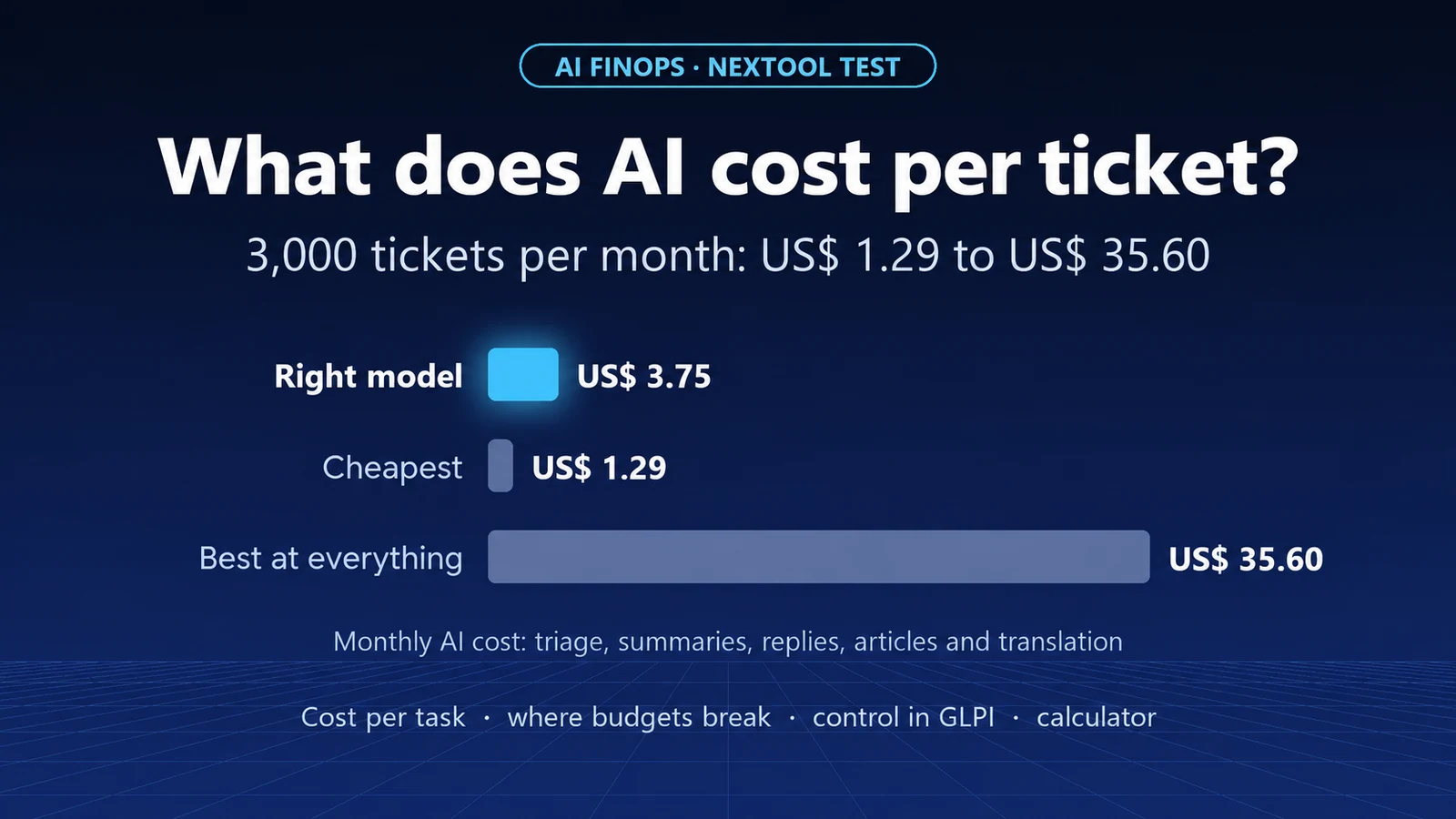
- Plan: free; the AI cost is whatever your provider charges
- Plugin: NexTool 6.14.0 or later
Next step
See every feature on the AI Assist page, including ticket summaries and sentiment analysis, which we covered in How to use AI to summarize and reply to tickets in GLPI. AI Assist is part of NexTool, an ecosystem of modules that extends GLPI without code customizations. Talk to the team for a demo.
Reviewed by the NexTool Solutions team. Screenshots are from GLPI running the NexTool plugin in a demo environment.


Comments
Comments on this post come from GitHub (giscus). When you load them, your browser connects to GitHub, which receives your IP address and may set its own cookies.
To load them automatically, enable functional cookies