


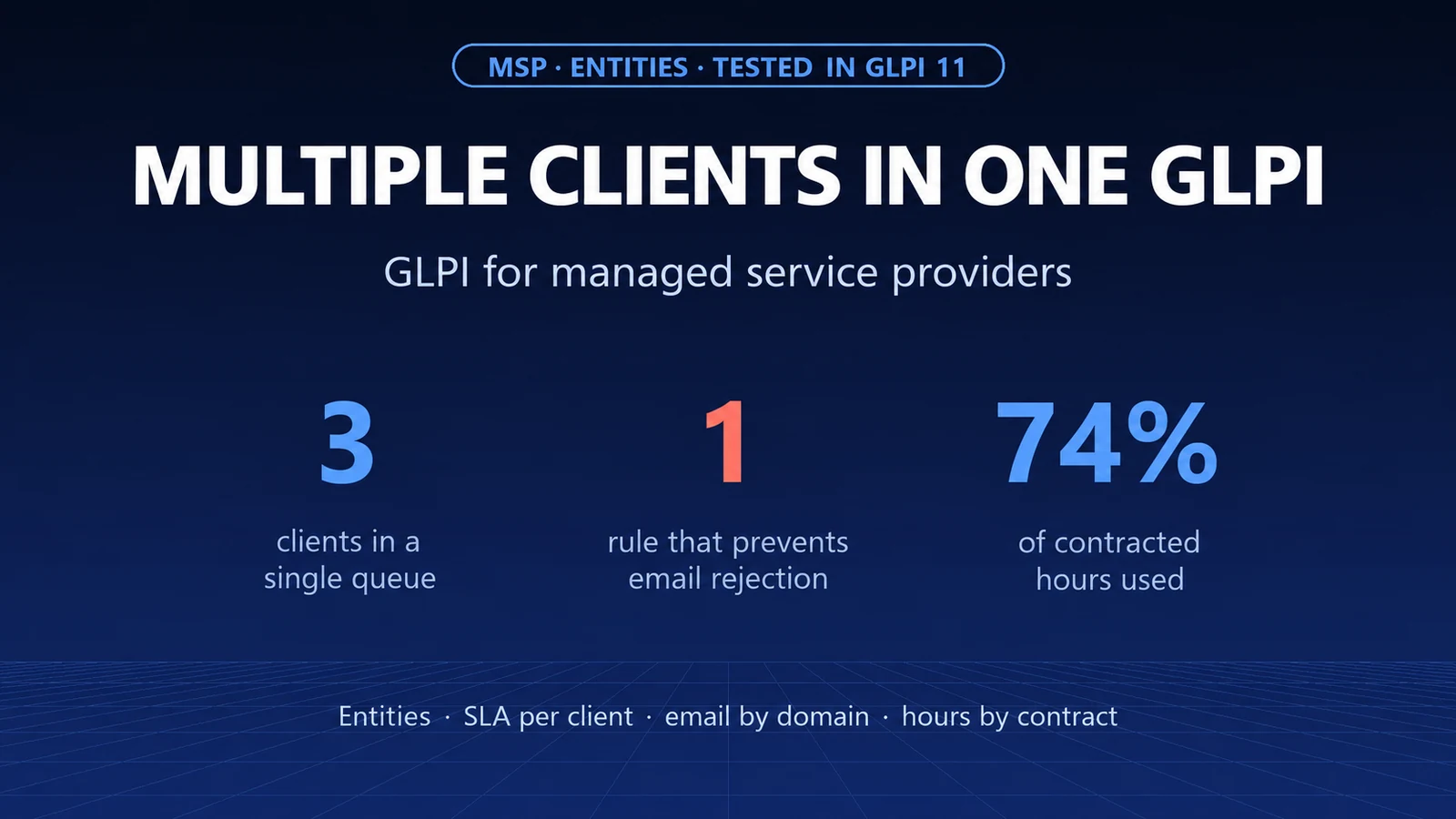
A managed service provider (MSP) that supports several companies can serve all of them in a single GLPI, with the same team, without one client seeing another client's tickets. We built this setup in our GLPI with three fictitious clients: one technician sees the queue of all three, each client has its own SLA, email lands in the right entity based on the sender's domain, and each contract's hours show up in a statement. In the test, a common email rule would have refused every email from an unknown domain. The fix is below, along with the step by step.
This guide uses native features of GLPI 10 and 11. Hours tracking per contract uses Contract Hours, a NexTool module.
The scenario
Three fictitious clients: Acme Indústria, Beta Logística and Clínica Gama. Two technicians serve all three. Each client has its own users, categories and SLA, and two of them have a monthly hours contract.
Step 1: one entity per client
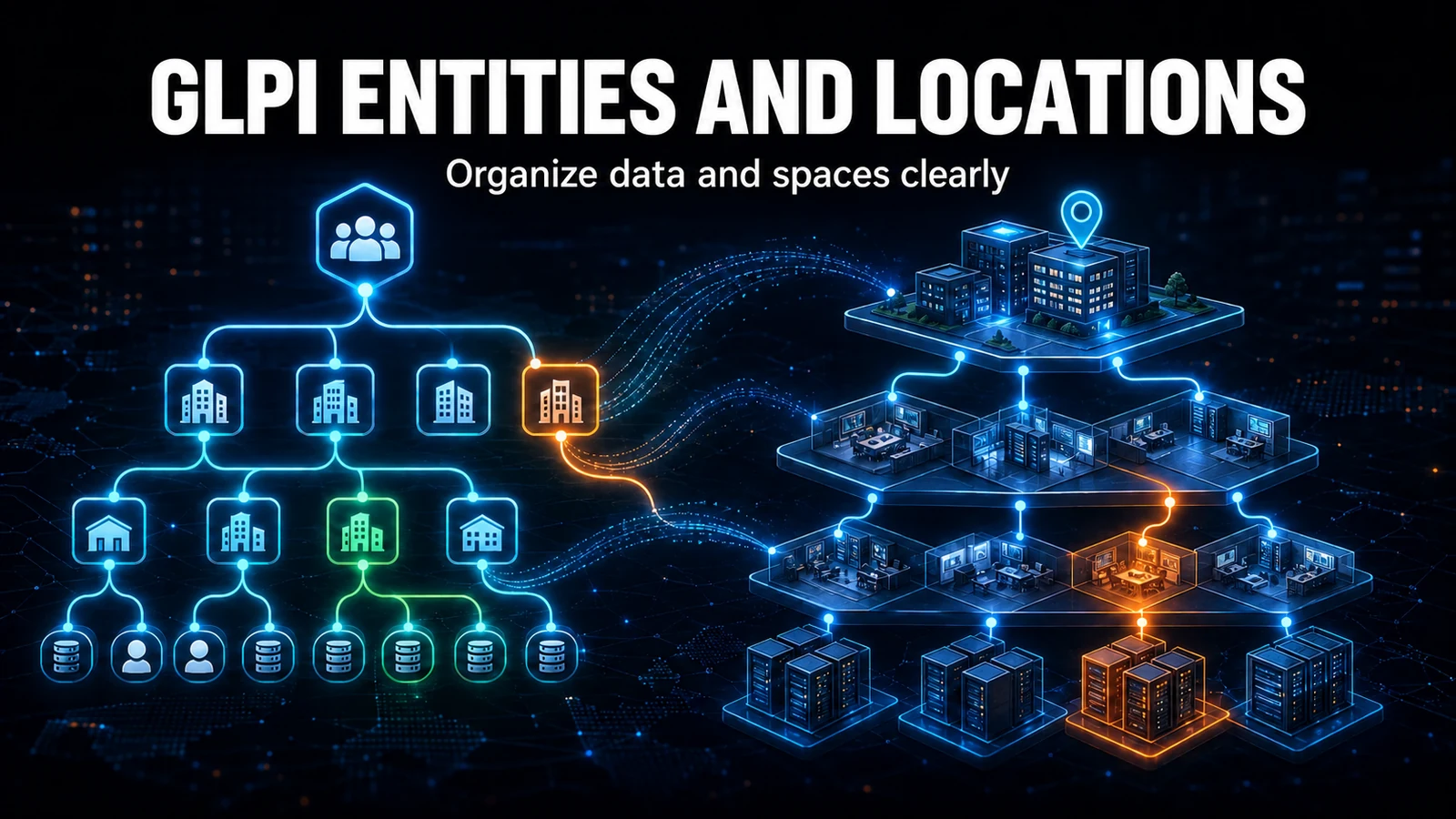
In Administration > Entities, create one entity for each client. The entity is the wall between clients: every ticket, user, asset and category belongs to one of them.
- Provider technicians: get the technician profile in each entity they serve, or in a parent entity with Recursive checked.
- Client users: get the Self-Service profile only in their own company's entity. This way, each user sees only their company's tickets.
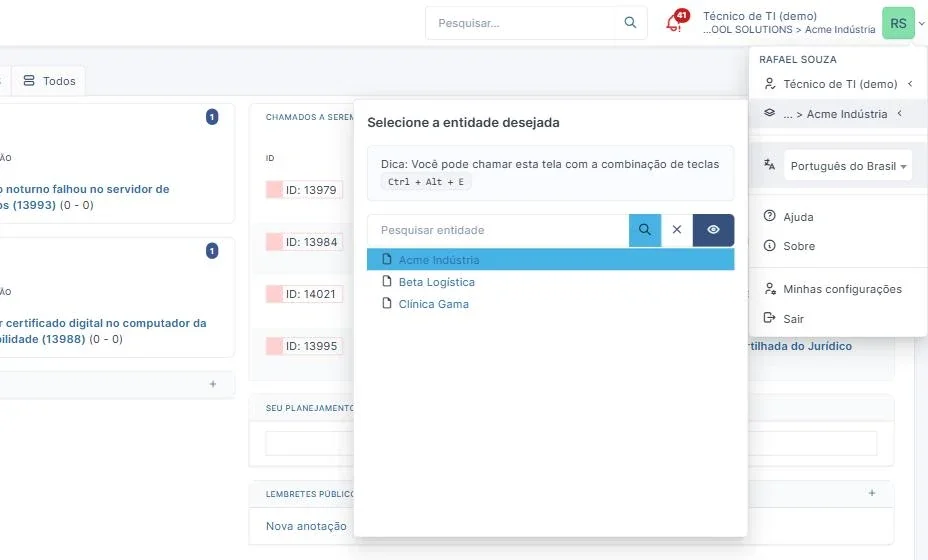
The technician switches clients with the entity selector (shortcut Ctrl + Alt + E) or picks the full structure and works with all three at once.
Step 2: a single queue, with the Entity column
With the full structure selected, the ticket list shows the three clients together. Add the Entity column and the Time to resolve + Progress column: the technician sees whose ticket it is and how much time is left before that contract's deadline is breached.
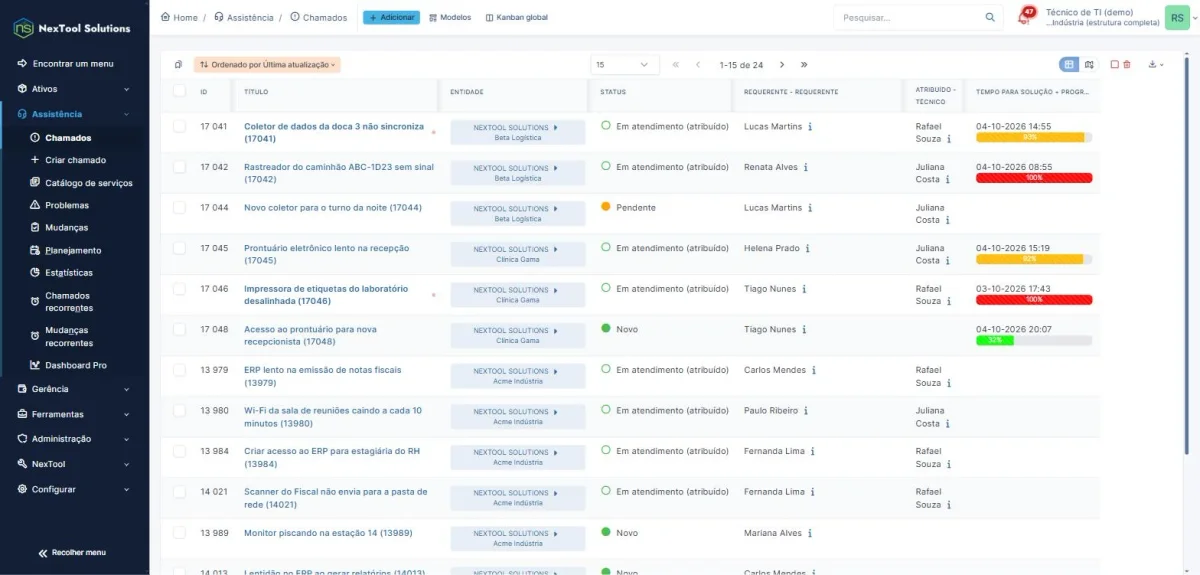
In the test, the Beta ticket with a 4-hour SLA was already at 100%, and the Clínica Gama ticket, with 8 hours, was still at 32%. Same screen, each one on its own scale.
Step 3: SLA and calendar per client
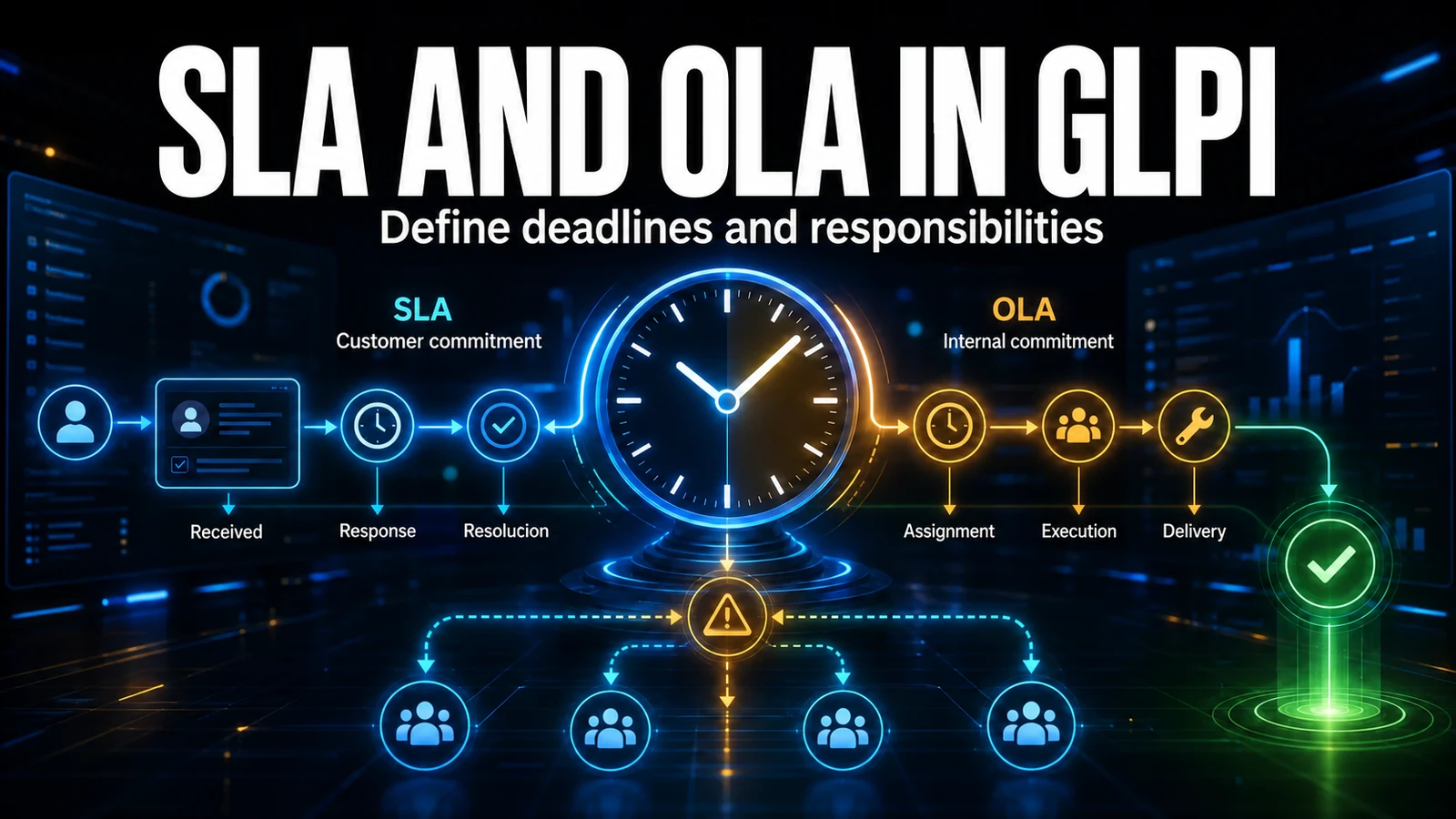
Create the service levels in Setup > Service levels inside each client's entity. Each client can have its own calendar, with its own holidays, and its own deadline. To apply them automatically, use a business rule for tickets in the client's entity, or the entity's default SLA.
Step 4: email lands in the right client
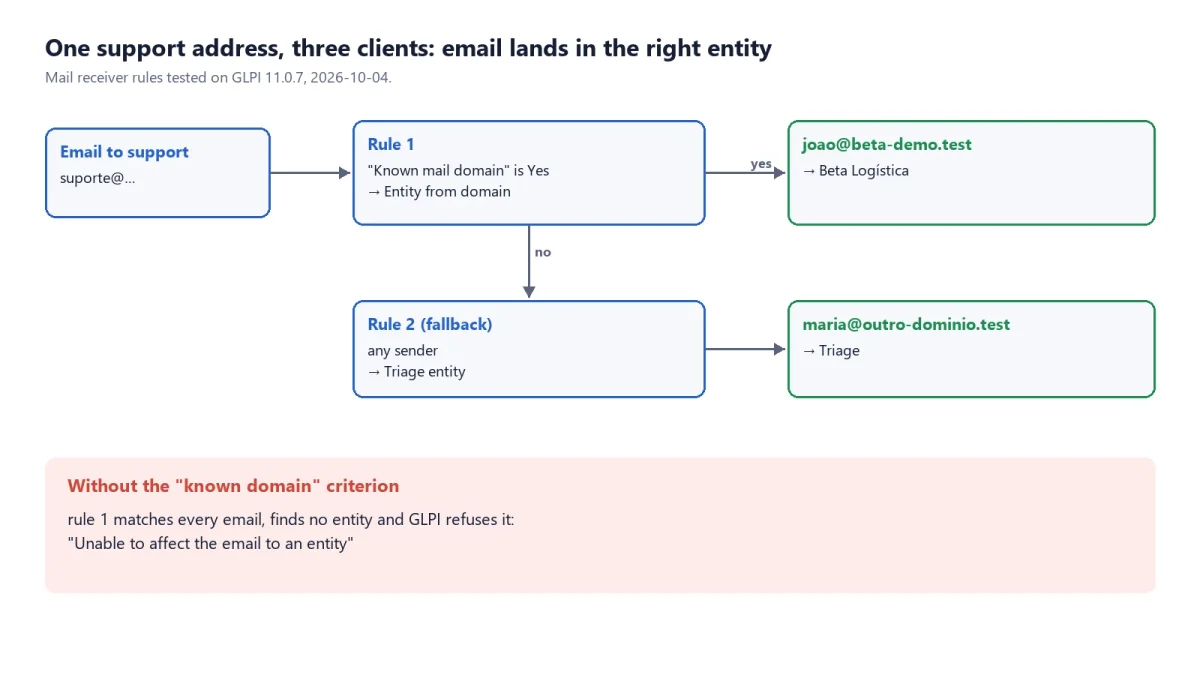
A single support address (for example, [email protected]) receives email from all clients. GLPI picks the entity from the sender's domain:
- In each entity, Advanced information tab, fill in Mail domain surrogates entity (for example,
betalogistica.com.br). - In Administration > Rules, under Rules for assigning a ticket created through a mails receiver, create the rule:
- Criterion: "Known mail domain" is Yes.
- Criterion: "From email header" regular expression matches
/@(.+)$/. - Action: "Entity from domain" with Assign the value from regular expression
#0. - Right below it, create a fallback rule that sends everything the first rule did not match to a triage entity.
The catch the test revealed: without the "Known mail domain" criterion, the first rule matches any email. Since mails receiver rules stop at the first match, a sender from an unknown domain ends up with no entity, and GLPI refuses the email with the reason "Unable to affect the email to an entity". With the criterion, the email from @beta-demo.test went to Beta, and the one from an unknown domain went to triage.
Step 5: each client with its own look
In each client's entity you can adjust:
- Notifications: sender address and name for GLPI emails. The client receives "Beta Logística Support", not another company's name.
- Assistance: automatic closing of solved tickets and the satisfaction survey.
- Categories: categories created in the client's entity only appear to that client. Handheld scanners for the logistics company, electronic health records for the clinic.
Step 6: hours per contract
For hours contracts (monthly package, hour bank), native GLPI records the time of each task, but does not show the contract balance. In the test we used Contract Hours: one contract per entity, with the month's hours, and task time deducted from the package.
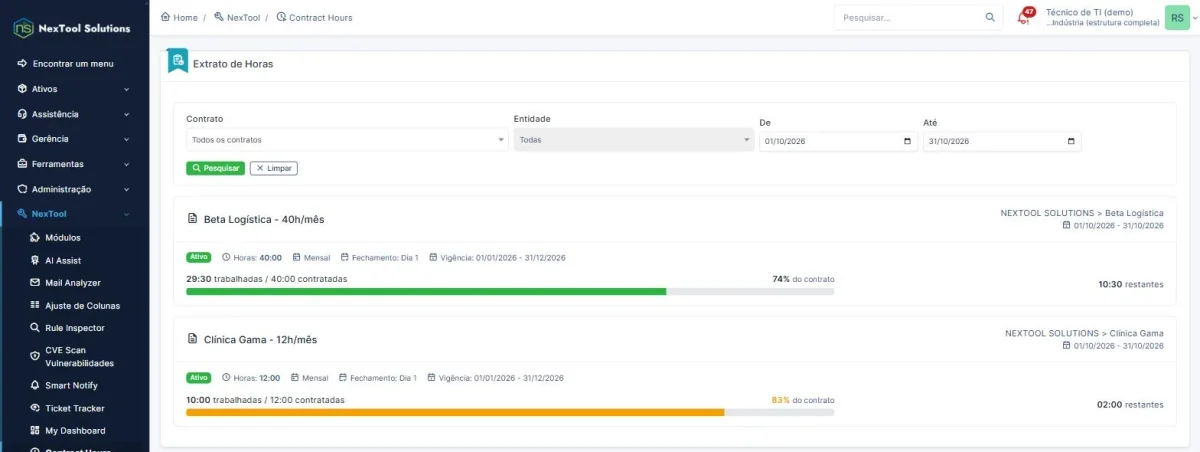
The statement showed Beta Logística at 29.5 of 40 hours (74%) and Clínica Gama at 10 of 12 hours (83%), already above the 80% alert. The client sees its own usage in the portal, and the provider sees all contracts together.
Checklist to get started
| Item | Where |
|---|---|
| One entity per client | Administration > Entities |
| Technician profile per entity (or recursive on the parent) | User > Authorizations |
| Client Self-Service profile only in the client's entity | User > Authorizations |
| Mail domain in each entity | Entity > Advanced information |
| Mails receiver rule with "Known mail domain" and fallback rule | Administration > Rules |
| SLA and calendar per client | Setup > Service levels |
| Email sender per client | Entity > Notifications |
| Hours contract, if any | Contract Hours |
When not to use a single GLPI
If the client's contract requires a separate database, or if the client will administer its own GLPI, one instance per client is the way to go. In that case, ticket synchronization between GLPI instances keeps the team from working on two screens.
NexTool test on October 4, 2026: fictitious clients, users and tickets created in our support GLPI 11.0.7, viewed by a fictitious technician with a restricted profile. The email rule was tested in a test GLPI, with entities and rules deleted at the end.

Comments
Comments on this post come from GitHub (giscus). When you load them, your browser connects to GitHub, which receives your IP address and may set its own cookies.
To load them automatically, enable functional cookies