Configuring SLA and OLA in GLPI is the easy part - what breaks in real operations is the escalation that never fires. While maintaining client GLPI environments, the request we get most is not "how do I create an SLA", it's "I set everything up and nobody gets notified when the deadline is blown". This guide configures SLA and OLA in GLPI 11 from scratch and shows the SQL queries we use to diagnose why deadlines fail to notify.
SLA vs OLA: what changes in practice
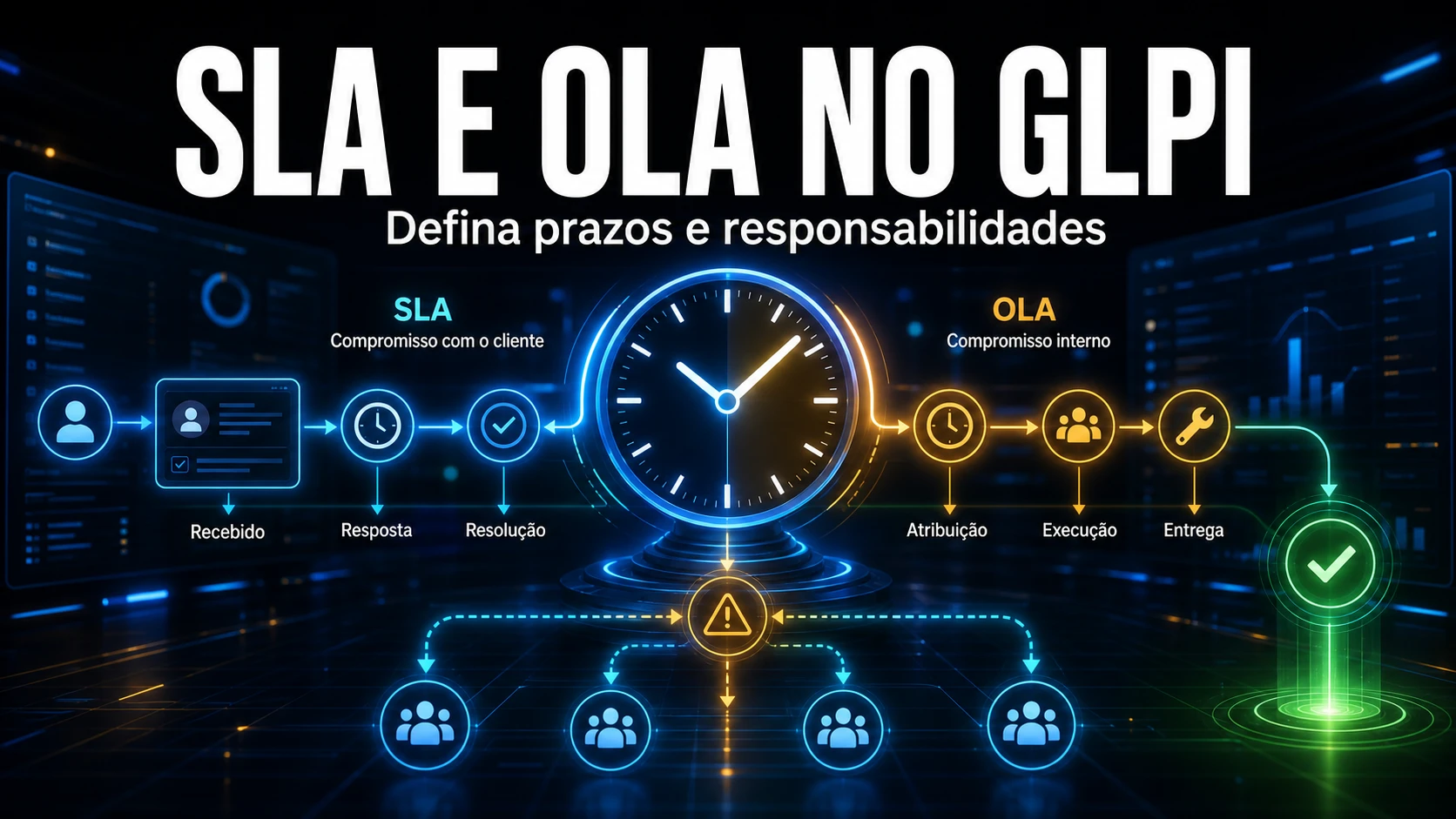
SLA (Service Level Agreement) is the agreement with the client (internal or external): it defines the response and resolution time commitment. Example: "high priority tickets are responded to within 1h and resolved within 4h".
OLA (Operational Level Agreement) is the internal agreement between the teams that back that SLA. Example: "infrastructure responds to L1 escalations within 30 minutes". In GLPI, the SLA writes the deadlines to the ticket's time_to_own and time_to_resolve; the OLA writes to internal_time_to_own and internal_time_to_resolve. Both run in parallel - and here lies the first misconception: escalating to L2 does NOT pause the client SLA.
How GLPI models SLA and OLA under the hood
Understanding the data model prevents most configuration mistakes. In GLPI, SLA and OLA are not loose objects: they live inside an SLM (Service Level), and it is the SLM that carries the calendar.
- SLM (
glpi_slms): the umbrella. It holds thecalendars_id- meaning the calendar belongs to the SLM, not to each SLA. - SLA (
glpi_slas) and OLA (glpi_olas): each row is one deadline, withtype(TTO or TTR),number_timeanddefinition_time(minute / hour / day). - Escalation levels (
glpi_slalevels/glpi_olalevels): the actions fired at X% of the deadline.
Two concepts that usually confuse people coming from another tool:
TTO - Time to Own (response time)
The deadline until the ticket is "taken into account" (owned by a technician). Note: TTO does not close when someone merely opens the ticket on screen; it closes on the first assignment or the first follow-up - that is what GLPI stores in takeintoaccount_delay_stat.
TTR - Time to Resolve (resolution time)
The deadline until the ticket is solved.
Step by step: configuring SLA in GLPI 11
- Calendar first. Before the SLA, define the service calendar (Setup > Calendars) with the real working segments (e.g., Mon-Fri, 08:00-18:00). If the SLM has no calendar (
calendars_id = 0), GLPI counts 24h straight; with a calendar, it counts only business hours. - Create the SLM and link the calendar. It is the container that groups the service's SLAs and OLAs.
- Create one SLA per priority, one for TTO and one for TTR. Use the matrix below as a starting point.
- Assign via business rule (Administration > Rules > Business rules for tickets): criterion Priority = High, action "Assign SLA (TTR)" and "Assign SLA (TTO)". The SLA is applied on creation; if priority changes later, you need a rule that recomputes it.
- Configure the escalation levels in each SLA (actions at 75%, 100% and 150% of the deadline).
| Priority | TTO (response) | TTR (resolution) | Suggested escalation |
|---|---|---|---|
| Very high | 15 min | 2 h | 75% notify technician; 100% notify coordinator; 150% reassign |
| High | 30 min | 4 h | 75% notify technician; 100% notify supervisor |
| Medium | 1 h | 8 h | 100% notify supervisor |
| Low | 2 h | 24 h | 100% notify the group |
| Very low | 4 h | 48 h | - |
These are honest starting-point ranges: recalibrate after 60-90 days with your Service Desk's real numbers and never copy deadlines from another client.
Configuring OLA
The OLA follows the same structure (TTO/TTR plus escalation levels) but measures the internal commitment between teams. The typical scenario: when L1 escalates to L2, the L2 OLA starts counting - and GLPI stores those deadlines in internal_time_to_own and internal_time_to_resolve, separate from the client SLA. To repeat the point that generates the most questions: the OLA does not freeze the SLA.
The common mistake: the escalation that never fires
In maintenance, the recurring SLA ticket is not about configuration - it's "the deadline was blown and nobody was warned". In almost every case the cause is the same: the automatic action slaticket, which scans the escalation levels, is in internal mode (it only runs when someone browses GLPI) or the external GLPI cron is not active. The level exists, the deadline is stored in time_to_resolve, but nothing fires at 75% because the process that reads the levels never runs. That is why, in our deployment checklist, checking slaticket comes BEFORE creating any escalation level.
Make sure the GLPI cron runs in external mode:
# /etc/cron.d/glpi - runs GLPI's automatic actions (including slaticket)
* * * * * www-data /usr/bin/php /var/www/glpi/front/cron.php >/dev/null 2>&1
Then confirm in the database that the action is alive and in external mode:
-- State of the SLA escalation automatic action.
-- mode:  1 = internal (bad, depends on browsing), 2 = external (correct)
-- state: 1 = waiting, 2 = running, 0 = disabled
SELECT name, state, mode, lastrun, frequency
FROM glpi_crontasks
WHERE name = 'slaticket';
And the query we run day to day in maintenance: tickets with an already-blown resolution deadline that are still open.
-- Tickets with an overdue TTR that are not yet solved.
-- status: 5 = solved, 6 = closed (excluded)
SELECT t.id, t.name, t.time_to_resolve, t.status
FROM glpi_tickets t
WHERE t.time_to_resolve IS NOT NULL
  AND t.time_to_resolve < NOW()
  AND t.status NOT IN (5, 6)
  AND t.solvedate IS NULL
ORDER BY t.time_to_resolve ASC;
To audit the configuration (and catch the SLM with no calendar before it breaks the deadlines):
-- Configured SLAs and the calendar inherited from the SLM.
-- NULL/empty calendar = 24h straight counting (the classic trap).
SELECT s.name AS sla,
       CASE s.type WHEN 1 THEN 'TTO' WHEN 0 THEN 'TTR' END AS type,
       s.number_time, s.definition_time,
       cal.name AS calendar
FROM glpi_slas s
JOIN glpi_slms slm ON slm.id = s.slms_id
LEFT JOIN glpi_calendars cal ON cal.id = slm.calendars_id
ORDER BY s.name;
Best practices from operators
- Start with 3-5 levels and recalibrate after 60-90 days with real data.
- Realistic calendar: do not configure 24x7 if the team works business hours - otherwise the clock "runs" overnight and the ticket is born already blown.
- Alert before the breach (75%) to allow time to react, not only on the breach.
- Never edit statuses or deadlines in bulk via SQL: you bypass the waiting-time recalculation (
sla_waiting_duration) and the deadline ends up wrong. - Document which business rule assigns each SLA - an orphan rule is the second biggest cause of "SLA not applied".
Next step
With SLA and OLA live, build your service catalog and track your Service Desk KPIs to know whether the deadlines are realistic.
If your operation has grown and the SLA becomes a weekly argument, NexTool's GLPI maintenance service takes over the configuration, the cron and the deadline monitoring for you.
Reviewed by the NexTool Solutions team.