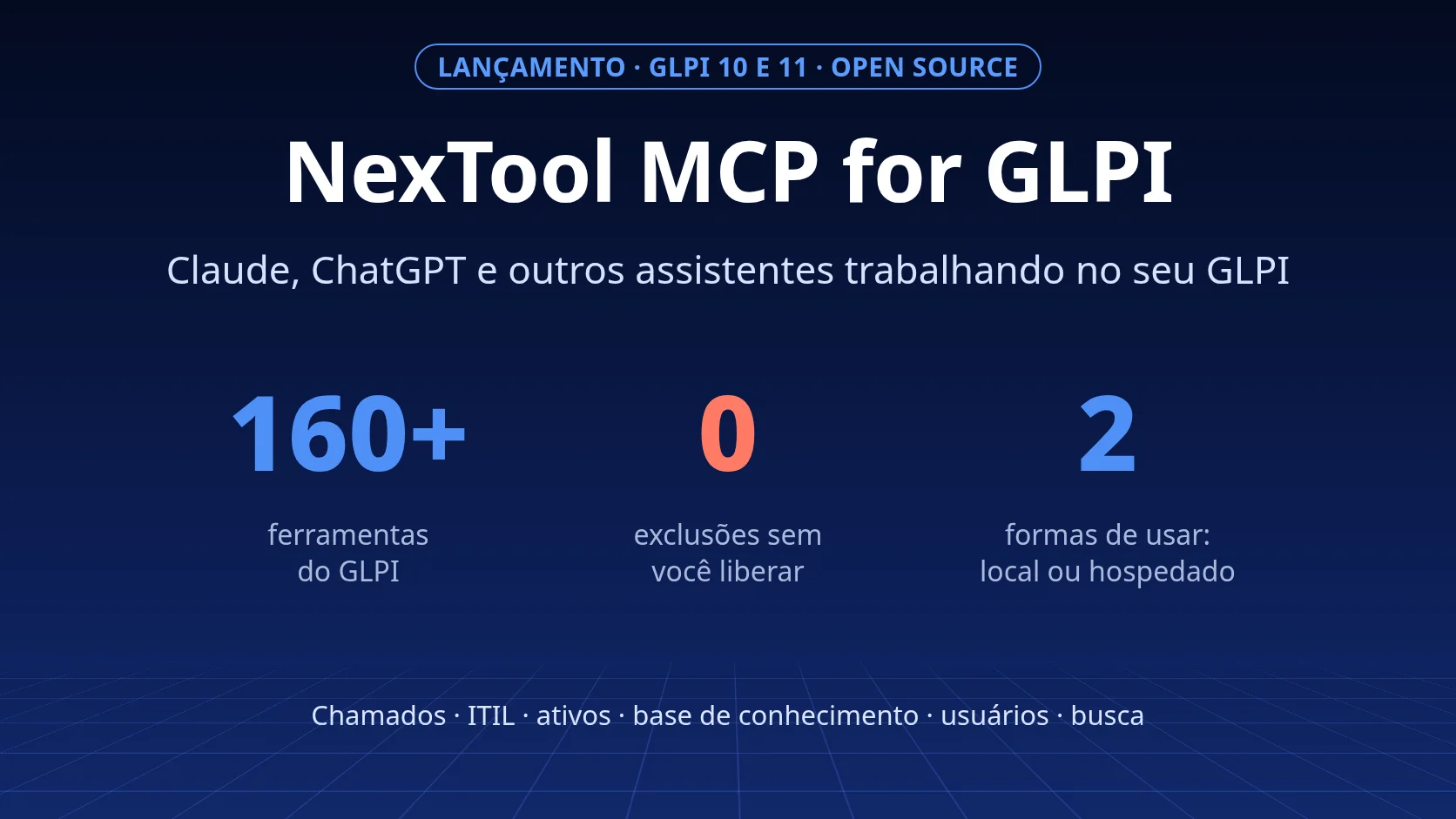
Today we are launching NexTool MCP for GLPI: an MCP server that gives Claude, ChatGPT and other AI assistants more than 160 tools to work in your GLPI, from "what are my tickets?" to the timeline of a change. It works with GLPI 10 and 11 and comes in two forms: open source, to run on your machine, and hosted by NexTool, in open beta.
What MCP is, in a few lines
MCP (Model Context Protocol) is the open standard AI assistants use to call external tools. A system publishes an MCP server with the list of what it can do ("list tickets", "add followup"), and any compatible client can use those tools: Claude, ChatGPT, Claude Code, Cursor, VS Code, Windsurf.
For the service desk, this takes AI out of the chat box. Instead of pasting the ticket text into the chat, you ask, and the assistant looks things up and acts in GLPI, within the permissions of the user you connected.
What NexTool MCP for GLPI does
It has more than 160 tools, each with a description and safety rules: more than 110 over the classic REST API (GLPI 10 and 11) and more than 50 over the GLPI 11 API v2, with OAuth2. Both families run in the same server, and each one turns on with its own credentials.
| Area | What the assistant can do |
|---|---|
| Tickets | "My tickets" (as requester, technician or observer), instance-wide lists filtered by status, creating and updating tickets, actors and groups |
| Ticket work | Unified timeline, followups, tasks, solutions and validations |
| ITIL | Problems and changes, with followups, tasks, solutions and the same timeline |
| Assets | Computers, monitors, printers and other assets, with details, reservations and locations |
| Knowledge base | Search and read articles and categories; create and edit them when the profile allows |
| Users and entities | Find users by email, groups, entities and the connected user's profiles |
| Search | GLPI search with column names in the user's language, plus counts |
Two details make a difference day to day. Responses carry names next to IDs (requester, technician, category, entity), so the assistant does not need another call to find out who user 37 is. And status, priority and type come in the language of the GLPI session, with GLPI's own texts: "Solucionado" for a Brazilian team, not "Solved".
There are also tool presets (tickets, ITIL, assets, knowledge base, administration and others) to turn on only what your team uses. Fewer tools, less context in each conversation.
Example requests
All in plain language, in the assistant you already use:
- "What are my open tickets as a technician, oldest first?"
- "Summarize the timeline of ticket 4821 and tell me what is left to close it."
- "Open a ticket for the 3rd floor printer that is out of toner, category Printers, medium urgency."
- "List the changes in progress and the problems linked to each one."
- "Where is laptop NB-0142 and who is its user?"
- "Search the knowledge base for a VPN article. If there is none, write one from the solution of ticket 4790."
- "Do I have pending validations? Approve the one on ticket 4810 with the comment: approved by the manager."
The assistant picks the tools, runs them and shows what it did. Write tools are flagged as such, so the client can ask for your confirmation before changing data.
Two ways to use it
| Open source (local) | Hosted (open beta) | |
|---|---|---|
| Where it runs | On your machine or server, started by the assistant | At NexTool, nothing to install |
| How it connects | GLPI tokens in environment variables | Sign-in with your NexTool portal account and one connector URL |
| GLPI on the intranet | Works | GLPI must be reachable from the internet over HTTPS |
| Credentials | Stay with you | Encrypted with a key only the connector can open |
| Cost | Free, MIT license | Free and Pro plans |
Open source, to run locally
The code is on GitHub at NexTools-Solutions/nextool-mcp-glpi, under the MIT license. It is the natural choice for a GLPI that only exists on the intranet: the server runs inside your network, next to the assistant, and talks directly to GLPI. You control the tokens, which tools are on, read-only mode and whether deletes exist at all.
It requires Node.js 18 or later. The package is published on npm as @nextoolsolutions/mcp-glpi and listed in the official MCP Registry as com.nextoolsolutions/glpi. There is nothing to clone or build: npx downloads and runs the latest version. In Claude Code, for example:
claude mcp add glpi \
  -e GLPI_URL=https://glpi.example.com \
  -e GLPI_USER_TOKEN=<user-token> \
  -e GLPI_APP_TOKEN=<app-token> \
  -- npx -y @nextoolsolutions/mcp-glpi
In Claude Desktop, Cursor and VS Code, the configuration uses "command": "npx" and "args": ["-y", "@nextoolsolutions/mcp-glpi"], with the same variables under env. The installation guide and the README have the complete examples, Windsurf included.
Hosted, in open beta
The hosted version has nothing to install. You sign in with your NexTool portal account, register the connection to your GLPI (URL and tokens), click Test connection and add one URL as a connector in Claude or ChatGPT. On first use, the assistant opens the portal sign-in and asks for your authorization. Claude Code, Cursor and VS Code can also use an API key.
- Encrypted credentials: GLPI tokens are encrypted with a key only the connector can open. Not even the portal can read them.
- Read-only per connection: on a connection marked read-only, every write tool is refused before it reaches GLPI.
- Several connections on Pro: up to 10 GLPIs in the same account, one connector per environment. You can keep production read-only and allow writes in staging.
- GLPI behind an IP allowlist: if your GLPI only accepts known addresses, the portal shows the IP to allow when you test the connection.
Security
- Every tool says what it does. All of them carry the MCP annotations that tell whether a tool only reads, changes data or is destructive.
- Deletes blocked. Delete tools are off by default. In the local version they only exist if you enable them, and each delete requires a written reason. On the hosted Free plan they are always refused.
- Same identity on both APIs. When you test the connection, the hosted version checks which user API v1 and API v2 authenticate. If they differ, the connection is refused; if it is a super-admin, the portal warns you and recommends a dedicated user with a minimal profile.
- Never beyond the profile. Every action runs as the token's user and follows that user's profile and entities in GLPI.
- Audit without content. We record who used which tool and when, without storing your prompts or the answers.
- No duplicates, no detours. A create call repeated with the same data within 2 minutes returns the first result instead of opening another ticket. And the server does not follow GLPI redirects, so tokens never end up at another address.
The usual advice applies: start with a dedicated service user, a minimal profile and, if you like, read-only mode. Then allow writes where they make sense.
Hosted plans
| Free | Pro | |
|---|---|---|
| Connected GLPIs | 1 | Up to 10, one connector per environment |
| Tools | More than 160, read and write | The same |
| Requests | Up to 60 per minute | Up to 300 per minute |
| Read-only per connection | Yes | Yes |
| How to get it | NexTool portal account | NexTool MCP Pro license for your NexTool environment, or included with NexBot |
During the beta, the hosted version is free.
The open source version is free and has no connection limit.
How to get started
- Start for free by creating your NexTool portal account: the way in is at nextoolsolutions.com/mcp. Then, under My Account > NexTool MCP, register the connection to your GLPI.
- Prepare GLPI: enable the REST API, generate a token for a dedicated user and, on GLPI 11, register an OAuth client if you want the API v2. The step-by-step guide is in the documentation.
- Is your GLPI intranet-only? Use the open source version.
Reviewed by the NexTool Solutions team. Features described from NexTool MCP for GLPI 3.5.2 and the hosted service in October 2026. Not affiliated with Teclib'. GLPI is a registered trademark of Teclib'.