


A password typed in a follow-up does not go away when the issue is solved. – It stays in the ticket history, the notification email and the backups. Vault Send, a free NexTool module, swaps the password for a one-time Vaultwarden link, encrypted in the browser.
The problem
Every service desk hands out passwords through tickets: the guest Wi-Fi, the newly created user, the branch router, the system a vendor has just set up. The fastest way is to type it in the follow-up, and that is where the password stays forever.
The reply text goes into the ticket history, which dozens of people read for years. It goes out in the notification email, into the inbox of everyone on the ticket, and from there to their phones. It goes into the GLPI database, the backups and the exported reports. A password that needed to work for five minutes ends up living in places nobody controls, and under data protection laws such as the GDPR and the LGPD it is data you keep storing for no reason.
How Vault Send works
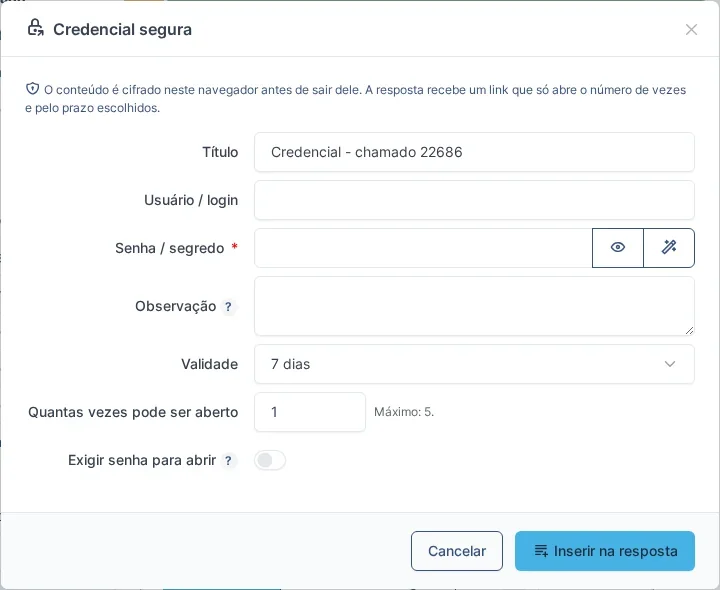
The module uses Bitwarden Send, stored in your company's Vaultwarden, and adds a Secure credential button next to Add, in the ticket reply.
- Credential encrypted in the browser – the technician fills in the title, the login, the password (there is a password generator), a note, the expiry and how many times the link can be opened. The browser encrypts everything before sending: GLPI receives only the encrypted text and passes it on to the vault.
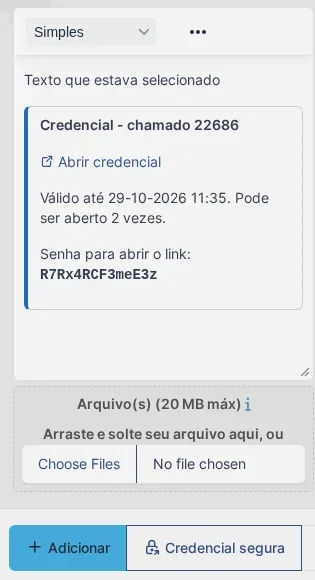
- A block inside the reply – on insert, the reply gets a block with the link, the expiry and the number of views, right after the paragraph where the cursor is. The technician sends the reply with the usual Add button, and the ticket records the link, never the password.
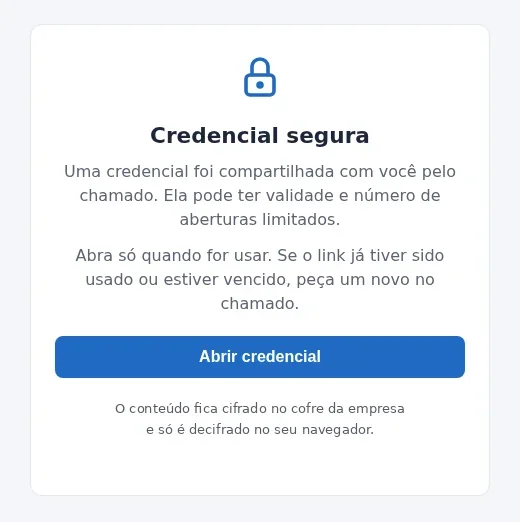
- Opening page with a button – the link leads to a GLPI page with an Open credential button. Email link scanners, which open everything that arrives, do not use up the view. Only whoever clicks sees the credential, decrypted in their own browser.
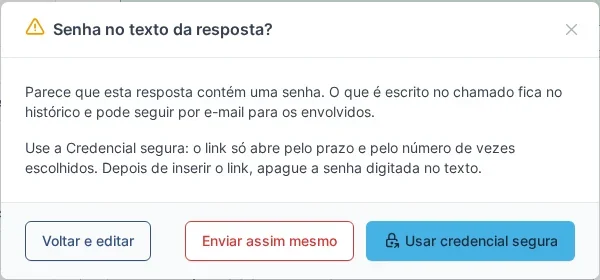
- Typed password warning – if someone types a password in the reply text (for example, “password: …”) and clicks Add, GLPI suggests using Secure credential, without blocking the reply. From the warning, the window opens already filled with the login and password found in the text, and the secure block replaces those lines. The check runs in the browser and can be turned off.
- Tracking and revocation – the ticket's Credentials tab shows every link sent, with its status, expiry and views. A link sent by mistake is revoked on the spot, and the ticket gets a note.
- From requester to technician – with the right in the self-service profile, requesters can also send a password to the technician with the same button.
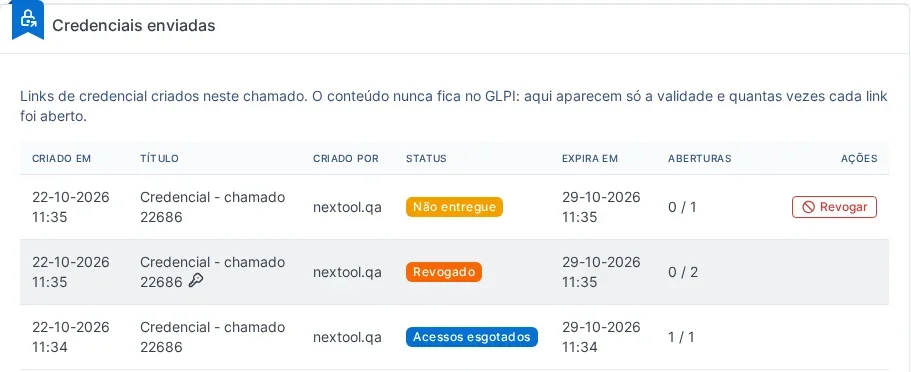
What happens to the password
The content is encrypted in the sender's browser, in the Bitwarden Send format. The key that opens the content travels only in the link, after the “#”, the part of the address that the browser never sends to any server. So the GLPI server never receives the password in clear text, and the vault stores content it cannot open.
The link itself stays in the ticket while it is valid: anyone who reads the ticket during that time can open it. That is why the main protection is a short expiry and a single view. Any improper access uses up the link, the recipient notices right away, and you revoke it and send another. The optional access password, shown in the block itself, stops anyone who has only the link, such as bots that open addresses or a link copied somewhere else.
Vault Send started as a plugin created by Fernando Silva and was rebuilt as a NexTool module, with a security review before release.
How to enable it
- Have the NexTool plugin 6.35.0 or newer on your GLPI 10, 11 or 12, accessed over HTTPS
- In Vaultwarden, create a user just for GLPI and copy its API key
- In NexTool, install and enable Vault Send and, in the Connection tab, enter the vault address, the Client ID and the Client Secret and test the connection
- In Administration > Profiles, NexTool tab, allow technicians and, if you want, requesters to send credentials
What if you don't have a vault yet?
The module is free, but it needs a Vaultwarden. NexTool deploys Vaultwarden on your server, hosts a vault for you or keeps the one you already have updated and supported. The three options show up at the top of the module settings, with a direct line to our team. To learn more about Vaultwarden first, see our Vaultwarden guide.
Who it is for
IT teams and MSPs that hand out access through GLPI: new users, device passwords, vendor credentials, temporary access. It also helps anyone who needs to show, in an audit or for data protection compliance, that passwords are not kept in tickets or emails.
Compatibility
- GLPI: 10, 11 and 12, over HTTPS
- Plan: Free
- Plugin: NexTool 6.35.0+
- Vault: Vaultwarden reachable from the GLPI server
Next step
See the details on the Vault Send page. The module is part of NexTool, a module ecosystem that extends GLPI without code customization. Talk to our team for a demo or to get your vault up and running.
Reviewed by the NexTool Solutions team. Screenshots are from a real GLPI environment with the NexTool plugin.
Comments
Comments on this post come from GitHub (giscus). When you load them, your browser connects to GitHub, which receives your IP address and may set its own cookies.
To load them automatically, enable functional cookies