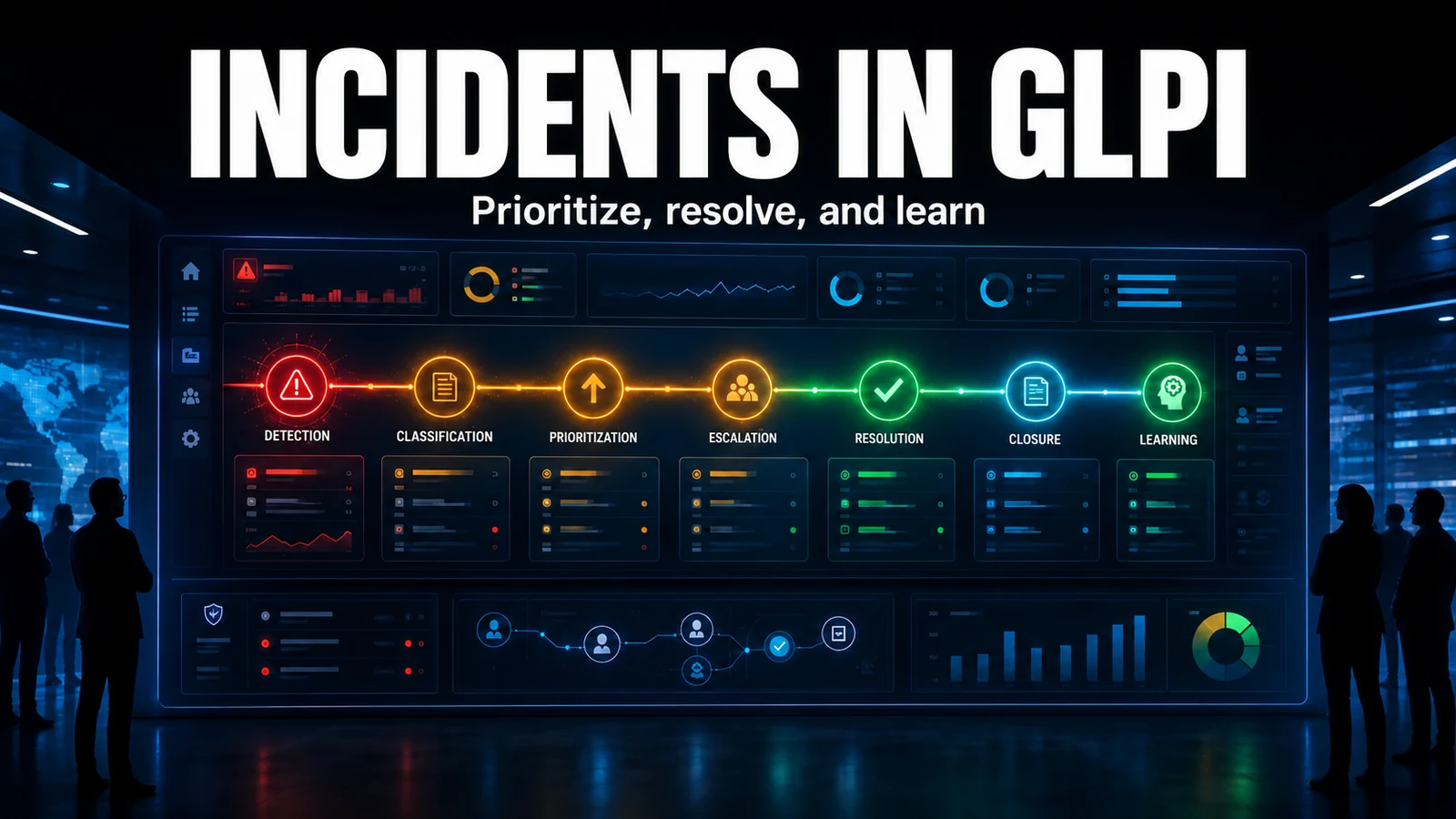
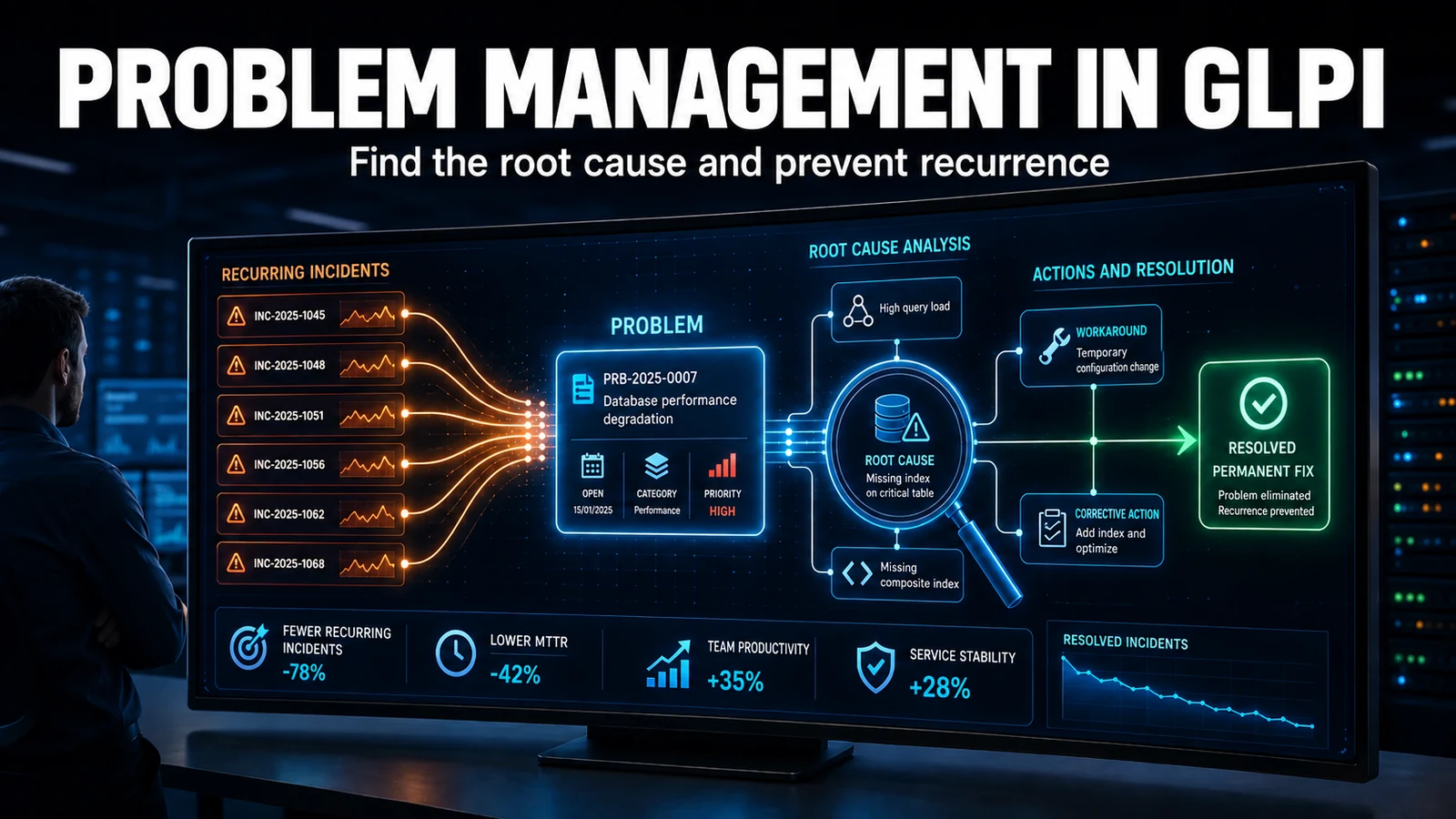
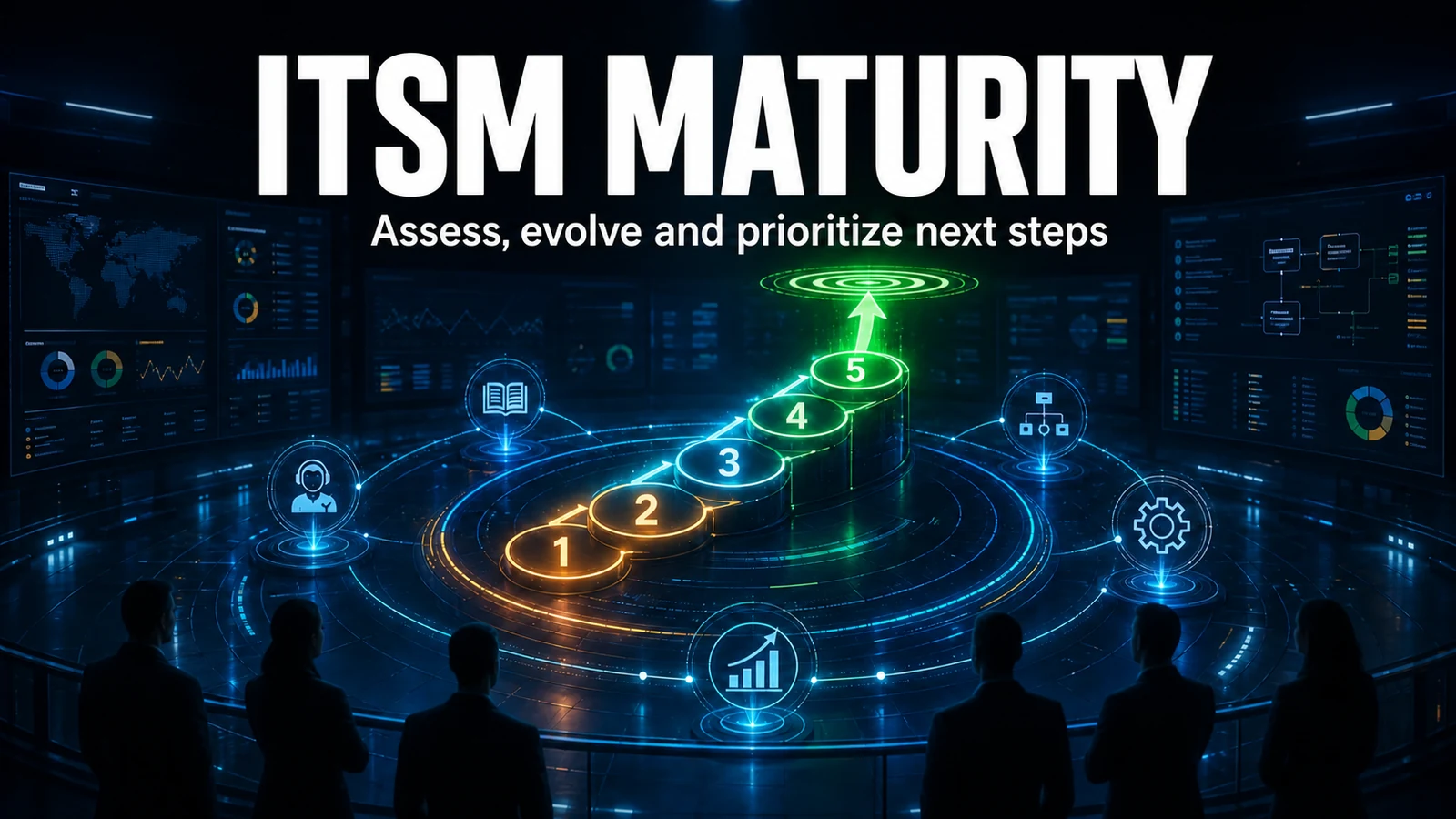
A well-managed change in GLPI is not the one with the most fields filled in, it is the one you can roll back at 2 a.m. when it fails. This guide walks the complete change lifecycle in GLPI: which section and column each piece of information comes from, how to model change types that native GLPI does not have, and the pitfalls we have seen wreck maintenance windows in the environments we support for clients.
The data model behind a change
Every change lives in the glpi_changes table. Beyond the obvious fields (name, content, urgency, impact, priority), what sets a change apart from an ordinary ticket are the text columns GLPI exposes in the analysis and plans section of the form:
impactcontent- impact analysis: what breaks if it goes wrong.controlistcontent- control list: verification points.rolloutplancontent- deployment plan (labeled "Deployment plan" in the core): the step-by-step rollout.backoutplancontent- backout/rollback plan (labeled "Backup plan" in the core): how to undo it.checklistcontent- post-implementation validation checklist.
Knowing that this information lives in separate columns, not loose text in the description, is what lets you audit governance straight from the database, as we show below.
"Change type" in GLPI: the field that does not exist
The most common mistake for people coming from tools like ServiceNow is to look for a "Type: Normal / Emergency / Standard" selector. It does not exist in native GLPI. A change has a category (itilcategories_id), urgency, impact and priority, but no ITIL type field. You model the classification with dedicated ITIL categories, which also feed reports and business rules.
| ITIL class | How to model it in GLPI | Approval | Example |
|---|---|---|---|
| Normal | "Change > Normal" category + mandatory validation | Formal, before implementing | GLPI version upgrade, server migration |
| Emergency | "Change > Emergency" category + Very high priority | Simplified, may be after the fact | Fix for a critical CVE in production |
| Standard (pre-approved) | Recurring change template + validation waived | Pre-approved, no new round | Service restart, already-approved firewall rule |
The lifecycle, status by status
GLPI moves a change through its own state machine, richer than the ticket one. The current state sits in the status column of glpi_changes:
- New (1) - logged under Assistance > Changes, with description, justification, impact and risk.
- Evaluation (4) - impact and risk analysis; filling in the analysis and plans sections.
- Approval (11) - validation round with the approvers.
- Accepted (12), Test (13), Qualification (14) - planning and executing the tasks (
glpi_changetasks), each logged in the timeline. - Solved (5) - post-implementation review; confirms success and records lessons learned.
- Closed (6) - final documentation and closure.
Each change task carries actiontime (actual time) and state (to do/done), which lets you compare planned versus spent effort - data we use to calibrate estimates for the next windows.
Approval: native validation versus multi-level
Native approval writes to glpi_changevalidations (status 2 = waiting, 3 = accepted, 4 = refused). The detail that catches almost everyone: GLPI validation is informational, not a gate. Nothing stops you from moving the change from Approval to Test with validation still pending; GLPI does not block the transition. If your governance requires that no one implements without a recorded approval, native validation alone does not solve it. That is where Approval Flow comes in, with multi-level approval and conditional routes that actually gate progress.
Approval request notification template
Under Setup > Notifications, the change validation event template uses GLPI tags. A lean body cuts down on back-and-forth:
Subject: [Change ##change.id##] Approval requested - ##change.title##

Hello,

A change is awaiting your approval.

Title:     ##change.title##
Category:  ##change.category##
Urgency:   ##change.urgency##
Impact:    ##change.impact##
Priority:  ##change.priority##

Description:
##change.content##

Approve or reject at:
##change.url##
Keeping urgency, impact and priority in the body means the approver does not have to open the change just to decide. That cuts the time in Approval status, which is where most windows fall behind.
Diagnostics: changes with no rollback plan
In support work, the field we most often find empty is the most critical one: backoutplancontent. The plans section is collapsed in the interface, so the technician fills in the description and tasks but never the backout plan, and the failure only shows up when the change goes wrong and no one knows how to revert. We run this SELECT every Friday, before the weekend window:
SELECT c.id,
       c.name AS change_name,
       c.status,
       IF(c.backoutplancontent = '' OR c.backoutplancontent IS NULL,
          'NO ROLLBACK', 'ok') AS rollback_plan
FROM glpi_changes c
WHERE c.is_deleted = 0
  AND c.status NOT IN (5, 6)          -- excludes Solved and Closed
ORDER BY c.date DESC;
Any row with NO ROLLBACK is a change that should not enter a window. We turn this into a business rule: without a backout plan filled in, approval does not go through.
Support best practices
- Document
backoutplancontentbefore requesting approval, not after implementing. - Link the change to its source problem (
glpi_changes_problems) to keep the root-cause-to-corrective-action traceability. - Create change templates for recurring (standard) changes and waive validation on them.
- Schedule outside peak hours and record the real
actiontimeto calibrate estimates. - Close the loop with the post-implementation review, even when everything went well; that is what becomes knowledge base.
If your operation needs an approval gate that actually stops progress and auditable change governance, NexTool support configures that flow with the Approval Flow module on top of the GLPI you already use.
Reviewed by the NexTool Solutions team.