SSO in GLPI with Microsoft Entra ID (Azure AD) eliminates local passwords and centralizes MFA in your tenant. But what decides between a stable login and a 3 a.m. incident is not clicking "SAML" in the portal: it is choosing the right protocol for your GLPI version and anticipating what will expire.
SAML or OIDC? The decision starts with your GLPI version
Entra ID delivers SSO over two protocols: SAML 2.0 and OpenID Connect (OIDC, on top of OAuth 2.0). GLPI speaks neither natively for login - you need a plugin. And here is the trap that catches whoever migrates to GLPI 11: the community's most maintained SAML plugin, glpisaml, is hard-capped at MAX_GLPI = 10.9.99. The author explicitly states it is not (and never will be) compatible with GLPI 11. Anyone reaching 11 expecting to "just reinstall the SAML plugin" hits a wall.
In practice, this is the decision matrix we use:
| Plugin | Protocol | GLPI 10 | GLPI 11 | JIT | Note |
|---|---|---|---|---|---|
glpisaml (DonutsNL) | SAML 2.0 | Yes | No (capped at 10.9.99) | Yes | Maintained successor to phpsaml |
phpsaml (derricksmith) | SAML 2.0 | Legacy | No | Yes | Stalled since 2022; avoid on new projects |
oauthsso | OpenID Connect | Yes | Yes | Yes | Pragmatic route on GLPI 11; Entra has native OIDC |
| SSO Login (NexTool module) | OpenID Connect | No | Yes (also GLPI 12) | Optional | Multi-tenant, profile from the Entra group, straight to the Microsoft login |
Summary: GLPI 10 accepts SAML (glpisaml) or OIDC (oauthsso); GLPI 11 and 12 are OIDC. For 11 and 12, the route we recommend is the NexTool SSO Login module, described in the next section. oauthsso, which Teclib distributes with the GLPI Network subscription, remains an alternative in steps 1 to 5. The reverse proxy, JIT and maintenance parts apply to both.
The recommended route on GLPI 11 and 12: the SSO Login module
SSO Login is the NexTool module for signing in with Microsoft Entra ID, Google and any OpenID Connect provider (Keycloak, Okta). It solves the points that generate the most tickets with oauthsso: it serves several organizations in the same GLPI (multi-tenant, for MSPs), assigns the profile from the Entra security group on the first login, respects GLPI's automatic user creation setting, also ends the Microsoft session on sign-out and can send users straight to the Microsoft login, skipping the GLPI login page.
In Entra ID
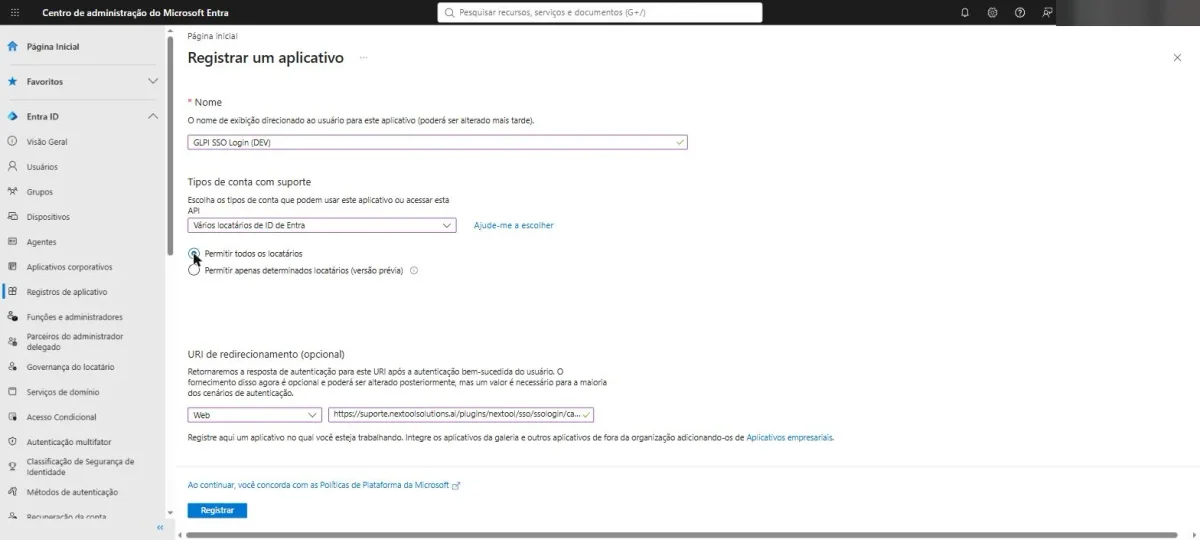
- App registrations > New registration. Choose the account type: a single tenant for your company, or multiple tenants if GLPI serves customers from other organizations. In Redirect URI (Web platform), paste the address the module shows ready to copy, in the format
https://glpi.yourcompany.com/plugins/nextool/sso/ssologin/callback.
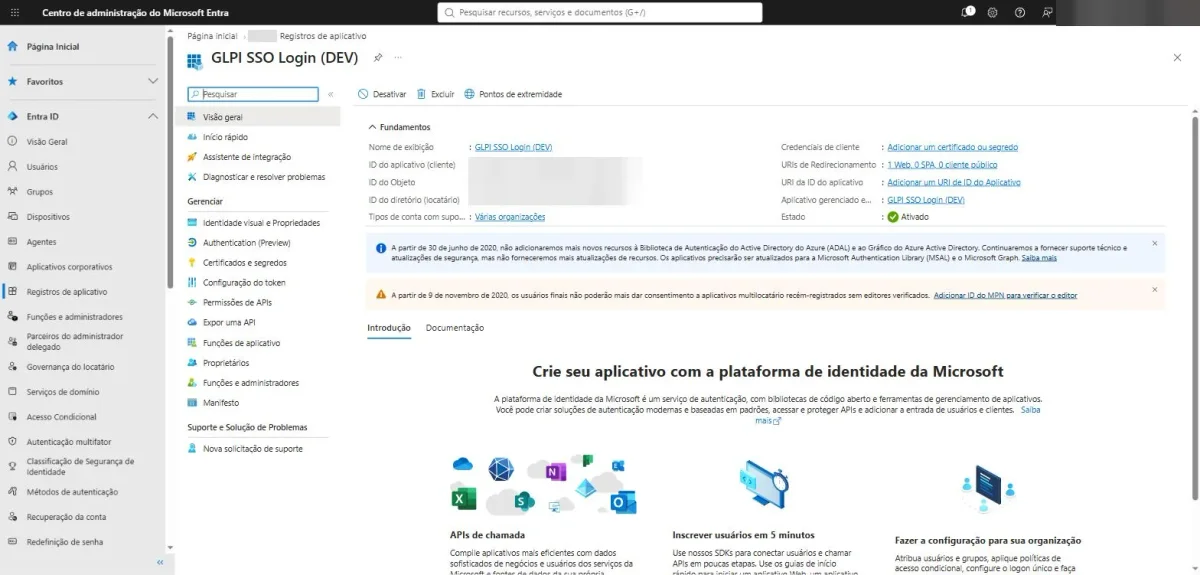
- Overview: note the Application (client) ID and the Directory (tenant) ID. In Certificates & secrets, create the client secret and copy its value right away: it is shown only once. Note the expiration date too.
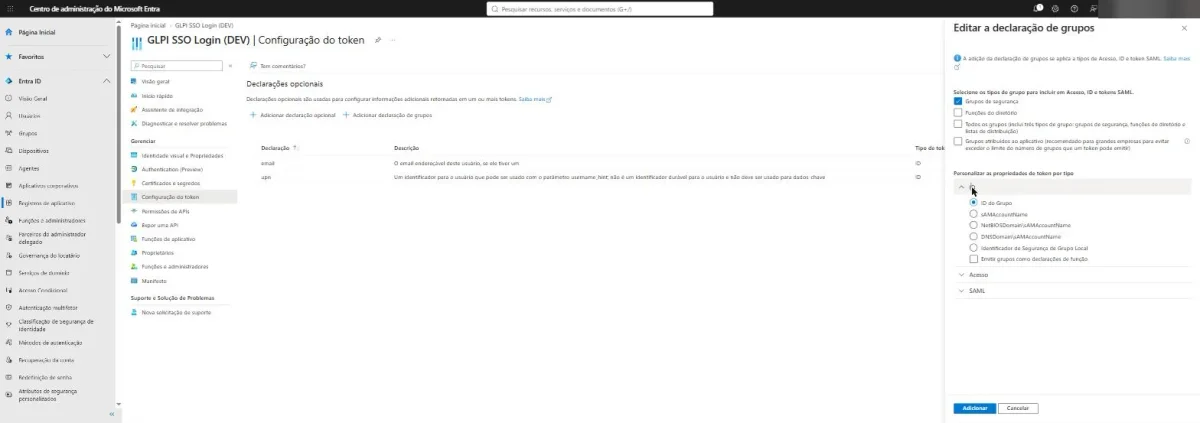
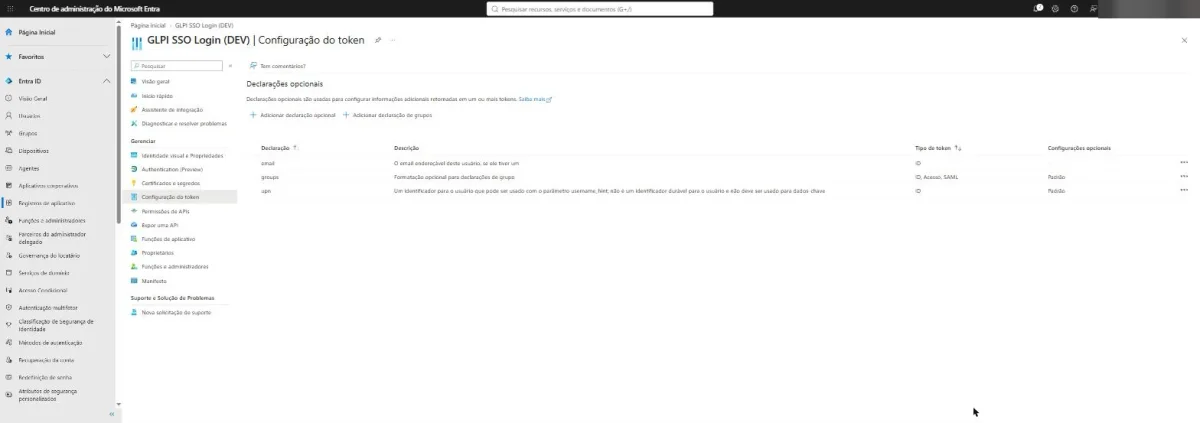
- Token configuration: add the optional claims
emailandupnto the ID token. To assign the profile by group, use Add groups claim, tick Security groups and keep Group ID.
- API permissions: Microsoft Graph
email,profileandUser.Read, delegated. Without admin consent, each user confirms access on the first login.
In GLPI
- Setup > SSO Login > Add: Microsoft Entra ID provider, client ID, secret and tenant (the directory ID). For several organizations, use the
organizationstenant with the list of accepted tenants or, if you serve any customer, the option to accept any tenant. - First-match field:
upn. On the first access, the module looks for the GLPI user whose login is the upn; after that, the link uses the account's fixed identifier in Entra, and changing the e-mail there does not break the login. - Profile by group: in the application, set
groupsas the roles claim and create an authorization assignment rule (Administration > Rules) with the Roles (claim) criterion equal to the security group's object ID and the profile action. The profile is dynamic: whoever leaves the group loses it on the next login. - Test and release: the application's Test tab validates the configuration and the provider keys without signing in. With the application active, the button appears on the login page. To skip that page, turn on Go straight to SSO login in the module's Settings tab; the local administrator can always sign in through the login page address with
?noAUTO=1at the end.
Two operational differences compared with oauthsso. Local GLPI accounts and administrators are not taken over by an external login unless you allow it in the application. And automatic user creation respects GLPI's setting and only happens with a verified e-mail in an allowed domain. Entra's Assignment required, described in step 5, is still good practice to restrict who receives a token.
1. Register the application in Entra ID
For OIDC, the path in the Entra ID portal is App registrations, not the Enterprise Application with "SAML": you register an app and generate a client secret.
- App registrations > New registration. Name "GLPI"; supported account: single tenant, unless you serve multiple organizations.
- Redirect URI (Web type): the plugin callback -
https://glpi.yourcompany.com/plugins/oauthsso/front/callback.php. - Certificates & secrets > New client secret. Record the value (shown only once) and, above all, the expiry date.
- Token configuration: make sure the
emailandpreferred_username(orupn) claims are present - GLPI matches the user by them. - Enterprise Applications > your app > Properties:
Assignment required = Yes. This is your real allowlist (explained in step 5).
2. Configure GLPI (OIDC route)
Extract the plugin into plugins/ (or marketplace/) and install it from the command line. The common mistake here is running the console as root: the generated files get the wrong owner and the next web access breaks on permissions. Run it as the web server user:
# GLPI 11: install and enable the plugin as the Apache user (www-data/apache)
php bin/console plugin:install oauthsso
php bin/console plugin:activate oauthsso

# oauthsso does NOT create its own table: it stores everything in glpi_configs,
# under the 'plugin:oauthsso' context (tenant id, client id, client secret).
On the plugin screen (or directly in glpi_configs), enter the Tenant ID, Client ID and Client Secret of the registered app. The GLPI login screen then shows the "Login with Microsoft" button.
3. The redirect trap behind a reverse proxy
This is the ticket we open most during rollout: GLPI sits behind an Nginx/Apache that terminates TLS and internally sees the request as http://. Result: it builds the callback with http://, Entra receives a redirect URI that does not match the registered one and returns redirect_uri_mismatch - or the user enters a redirect loop. The definitive fix is to pin the base URL in the database:
-- Force the correct base URL (avoids an http:// callback behind the proxy)
UPDATE glpi_configs
SET value = 'https://glpi.yourcompany.com'
WHERE context = 'core' AND name = 'url_base';

-- GLPI caches config: clear the cache after changing it
-- php bin/console cache:clear
Also confirm the proxy forwards the real scheme - for example, RequestHeader set X-Forwarded-Proto "https" in Apache, or proxy_set_header X-Forwarded-Proto $scheme; in Nginx. Correct base URL plus the correct header ends the loop.
4. JIT: when the user logs in but sees nothing
Just-in-Time provisioning creates the user on first login - but does not assign a profile. The symptom is classic: authentication passes, the user gets in and lands on an empty screen ("no profile assigned"). In support work, this is the second most common ticket right after "SSO configured". The diagnosis is a single line of SQL:
-- SSO users (external authentication) that ended up WITHOUT a profile:
-- they log in, but land on an empty screen.
SELECT u.id, u.name, u.authtype
FROM glpi_users u
LEFT JOIN glpi_profiles_users pu ON pu.users_id = u.id
WHERE pu.id IS NULL
  AND u.is_deleted = 0;
The output gives you exactly who needs a profile. The scalable fix is an authorization assignment rule (Administration > Rules) that grants a default profile to anyone arriving via SSO, instead of doing it by hand for every new user.
5. The real allowlist lives in Entra, not in GLPI
A detail only operators learn the hard way: oauthsso creates the user on first login and ignores the core is_users_auto_add flag. In other words, any valid tenant account that reaches the callback becomes a GLPI user. Looking for the gate inside GLPI is pointless - it does not exist in the plugin. The real control is the Assignment required = Yes from step 1: with it on, Entra only issues a token to whoever you explicitly assigned to the application. That is your allowlist, managed in the tenant.
A note on groups: if you want to map an AD group to a GLPI profile, know that Entra sends groups as GUIDs, not readable names. Either you use App Roles (names you define yourself) or you translate the GUID in the mapping. Expecting "IT" and getting 7a2f... is the third common surprise.
Support checklist: what breaks in production
SSO is not "set it and forget it". In our operation, every SSO environment enters the inventory with these items monitored, because they are the ones that bring the login down with nobody having touched anything:
- Client secret (OIDC) or signing certificate (SAML) expiry: the number 1 cause of "SSO stopped out of nowhere". The Entra secret expires (between 6 and 24 months); record the date and renew ahead of time.
- Server clock (SAML): the assertion has a validity window; if the clock drifts, GLPI rejects it with "assertion not yet valid". Keep NTP/chrony running (
timedatectl status). - URL/domain rotation: did the GLPI domain change? Update the redirect URI in Entra and
url_basein the database in the same deploy. - Local fallback: keep at least one active local admin account. If the IdP goes down, you can still get in through GLPI's traditional login.
At NexTool, we configure and maintain SSO (Entra ID, Google Workspace and LDAP/AD) in client GLPI environments, with the expiry inventory and the fallback documented - precisely so login never becomes an on-call emergency. If you want this design applied to your environment, talk to us about GLPI support and maintenance.
Reviewed by the NexTool Solutions team.